Show patients your logo, colour and contact details
Show your clinic's logo, colour and contact details to patients on secure links, and give each team its own logo. For verified clinics with branding turned on.
Who can do this: Organization admins · Web and desktop
A verified clinic can show patients its own logo, colour and contact details. Patients see them on the secure-link page they open from a text, and in the BloomText app if your practice offers it, so they know the message is from you and can reach you directly. In the app, patients see your team logos (or your icon) beside their chats and can open your contact card; your colour shows on the secure link.
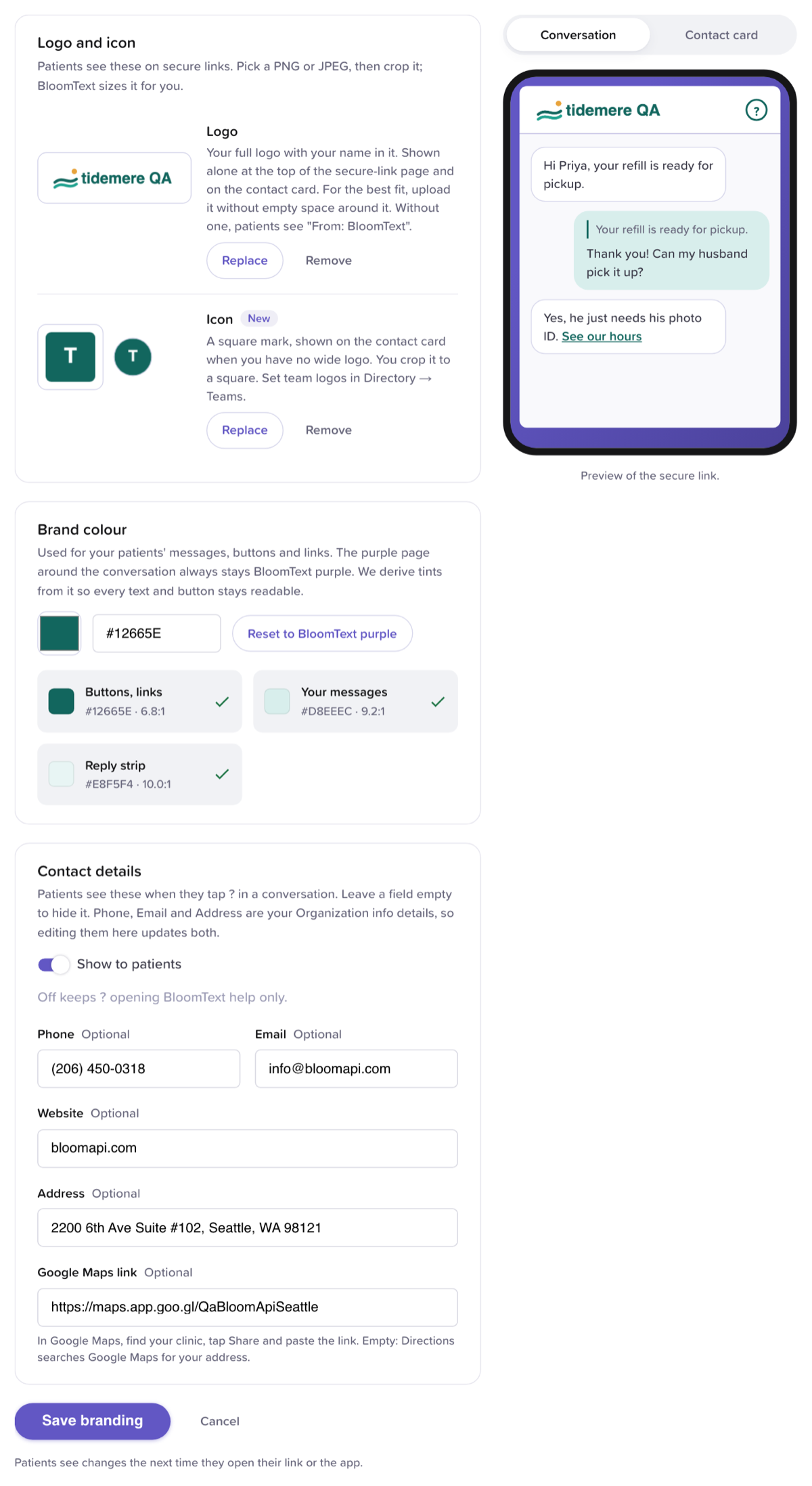
Patient chat branding, with the secure link previewed on the right.
Before you start
- You need to be an organization admin.
- Branding is for verified clinics with the feature turned on. If you don't see Patient chat branding in your organization's settings, email support@bloomtext.com to ask for it. If the tab says only verified clinics can brand their chats, click Request verification and BloomText will be in touch.
- Have your logo ready as a PNG or JPEG. A photo from your phone works too: you crop it, and BloomText makes it the right size.
Add your logo and icon
- Click Settings, the gear at the bottom of the left bar.
- Click Organizations.
- Click your practice.
- Open the Patient chat branding tab.
- Next to Logo, click Upload and pick your full logo, the one with your name in it. For the best fit, use a file without empty space around the logo.
- In Crop your logo, the box keeps your logo's shape. Drag the box or its corners, or zoom, to choose the area, then click Use this crop. The logo shows at once in the preview. A logo wider than 8 times its height is cropped to 8:1, and a tall one to a square.
- Next to Icon, click Upload and pick your mark.
- In Crop your icon, drag the image and zoom (scroll, or pinch on a trackpad) until your mark fills the square, then click Use this crop.
Click Cancel in the crop window to keep the image you had. BloomText shrinks each crop before uploading it, so a photo of up to 20 MB is fine. The cropped logo needs to be at least 240 px wide, and the icon at least 192 × 192 px.
If an image can't be used, the reason shows, for example "Upload a PNG or JPEG" or "The logo must be at least 240 pixels wide". Your saved logo stays as it was.
The logo shows alone at the top of the secure-link page and on the contact card. Without one, patients see From: and your practice's name, as today. The icon shows beside the chats of a team without its own logo in the BloomText app, if your practice offers it, and on the contact card when you have no wide logo.
Pick your colour
- Under Brand colour, click the colour square, or type a colour as
#RRGGBB, for example#12665E. - Check the three swatches: Buttons, links, Your messages and Reply strip. They are the shades patients see, with how readable each is.
Patients' own messages, the buttons and the links take your colour. The purple page around the conversation always stays BloomText purple. A very light colour, such as yellow, is darkened so text stays readable, and a line under the swatches says so. Reset to BloomText purple goes back to the standard colours.
Add your contact details
- Under Contact details, turn on Show to patients.
- Fill in the fields you want patients to see: Phone, Email, Website, Address and Google Maps link. Leave a field empty to hide it.
- For the Google Maps link, find your clinic in Google Maps, tap Share and paste the link. Without one, Directions searches Google Maps for your address.
With Show to patients on, patients tap ? at the top of the chat to see your contact card. With it off, ? opens BloomText help, as today.
Phone, Email and Address are the ones on your organization's
Details tab, so changing them here changes them there too. Type your
website without https://, for example yourclinic.com; BloomText saves it
with https://.
Preview and save
- On the right, switch between Conversation and Contact card to see what patients see.
- Click Save branding. A bar says Branding saved.
Patients see the changes the next time they open their link. Cancel puts back what was saved.
Give a team its own logo
Each team can have a square logo of its own. See Add a team logo.
Good to know
- Only patients see your branding. Your coworkers' BloomText doesn't change, except for team logos, which they see on the team too.
- The Secured by BloomText line above the chat stays, so patients can tell the link is genuine.
- If BloomText turns branding off for your clinic, patients see the standard page again on their next visit. Team logos you set stay until an admin removes them.
Related
Referenced by
Edit your organization details
Keep your practice's name, address, phone and contact email current, so coworkers and partners who find you on BloomText see the right details.
Hide patient phone numbers
Turn on one organization setting so coworkers who aren't admins see only the last four digits of patient numbers and can't search by phone.