Add recipients to a broadcast
Add people to a broadcast campaign by picking patients from a table with search, tag filters and Select all, by creating a new patient with tags, or from a CSV with column mapping and a review of every row.
Overview
There are two ways to add people to a campaign, and you can use both:
- Add existing: pick patients from your patient table, with search, tag filters and Select all. If someone isn't there yet, create them in the same dialog, with tags.
- Add from CSV: bring in a spreadsheet, map each column to a patient field or a message variable, and review every row before you add it.
Each dialog adds people straight to the campaign, in the wizard and on the campaign page alike, and a notice says how many were added. The recipients list then shows everyone in the campaign.
To bring a spreadsheet of patients into the Directory without a broadcast, see Import patients from a CSV.
Prerequisites
- A campaign. See Create a broadcast campaign.
- For a CSV: a
.csvfile with a header row and at least one column that identifies the patient: Phone, Email or MRN.
Steps
1. Open Add patients
- New campaign: the wizard's Recipients step ("Who should get this broadcast?"). While it's empty it says No recipients yet. Click Add patients; once there are recipients, the same button sits at the top right.
- Existing campaign: open it from the Broadcast list and click Add more at the top of the campaign page.
Both open a menu: Add existing (step 3) or Add from CSV (step 2).
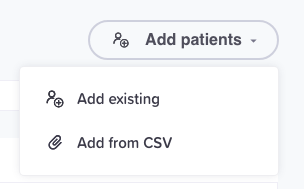
One menu for both ways to add.
2. Upload a CSV and map its columns
Example file, march-reminders.csv:
| A | B | C | D | E | |
|---|---|---|---|---|---|
| 1 | Phone | First Name | Last Name | Appt Date | Dr. Name |
| 2 | (206) 555-0101 | Maria | Lopez | March 14 | Nguyen |
| 3 | (206) 555-0102 | James | Okafor | Lee | |
| 4 | (206) 555-0103 | Chen | April 2 | Okafor |
- Choose Add from CSV, click the drop zone or drag the file onto it, and click Continue.
- Step 1 of 2 · Map columns lists each column of your file with a
sample of its values. Set Import as for each one:
- Patient field: Phone, First name, Last name, Date of birth, MRN or
Email: identifies the patient, or fills in a new patient's record.
Common headers (
Phone,First Name,DOB,Email…) are matched for you and show Matched. - Variable: keeps the column's values for your message. The variable
is named after the header: Appt Date becomes
{{appt_date}}, Dr. Name becomes{{dr_name}}. - Don't import: the column is ignored (Skipped). Choose Variable for each column your message needs.
- Patient field: Phone, First name, Last name, Date of birth, MRN or
Email: identifies the patient, or fills in a new patient's record.
Common headers (
- Click Next: review rows (step 4). Replace file above the table starts again with another file.
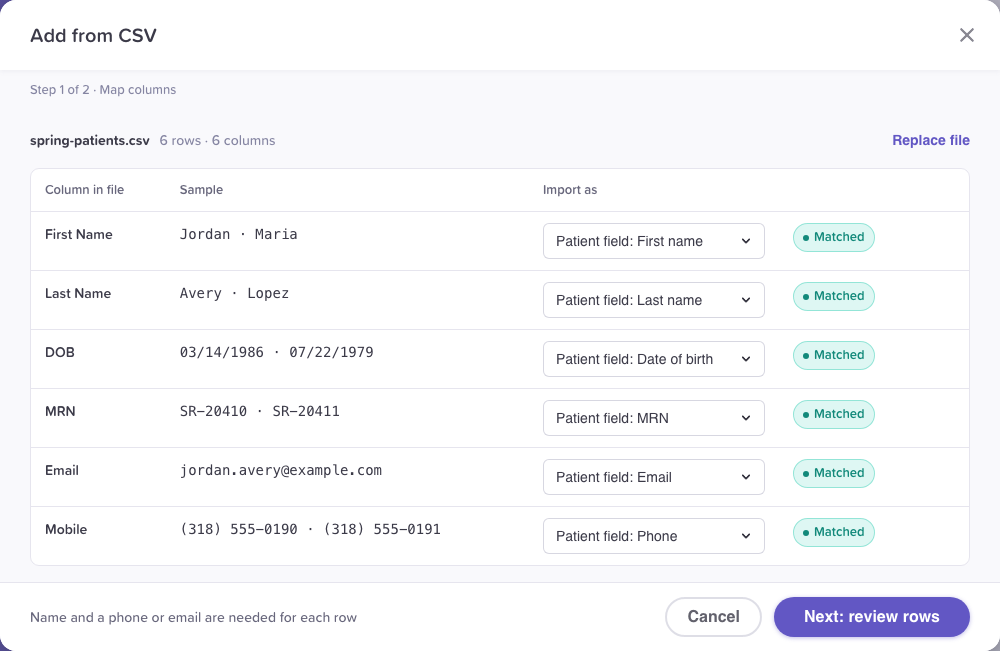
Each column goes to a patient field, a variable, or nowhere.
3. Pick existing patients or create a new one
Choose Add existing. Add existing patients is your patient table in a dialog:
- Search by name, phone, email or MRN.
- Hide already added is on at first, so people already in the campaign don't show; its badge counts them.
- Filters narrows the table by tag (each with its patient count), created date, last activity and texting status, as on the Patients tab.
Tick each patient you want. Ticking replaces the search with a bar ("6 selected", Clear). To take more than one page, click the arrow next to the header checkbox and choose All N matching (up to 20,000 per action); the bar then reads "All N matching selected". A new search or filter clears the selection.
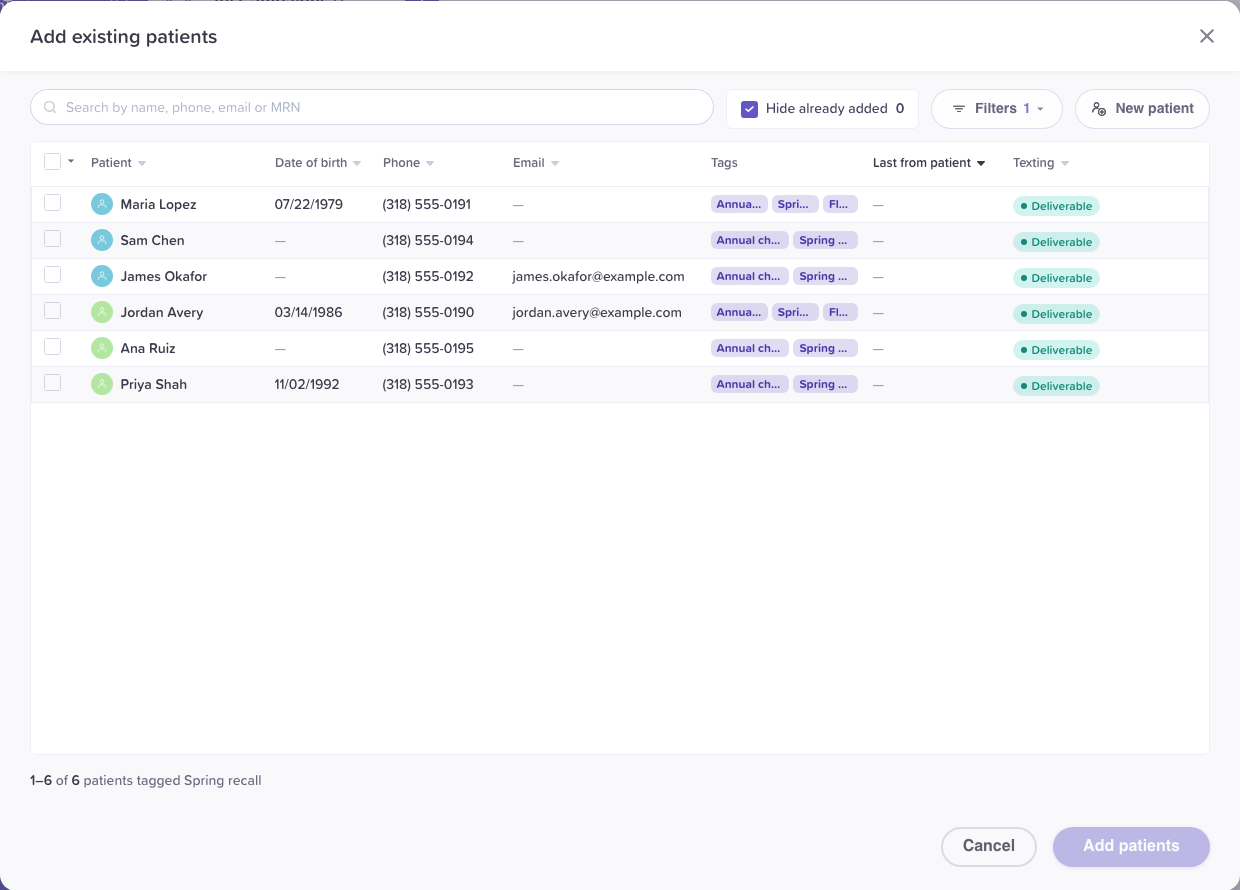
Filter by a tag to find a group of patients.
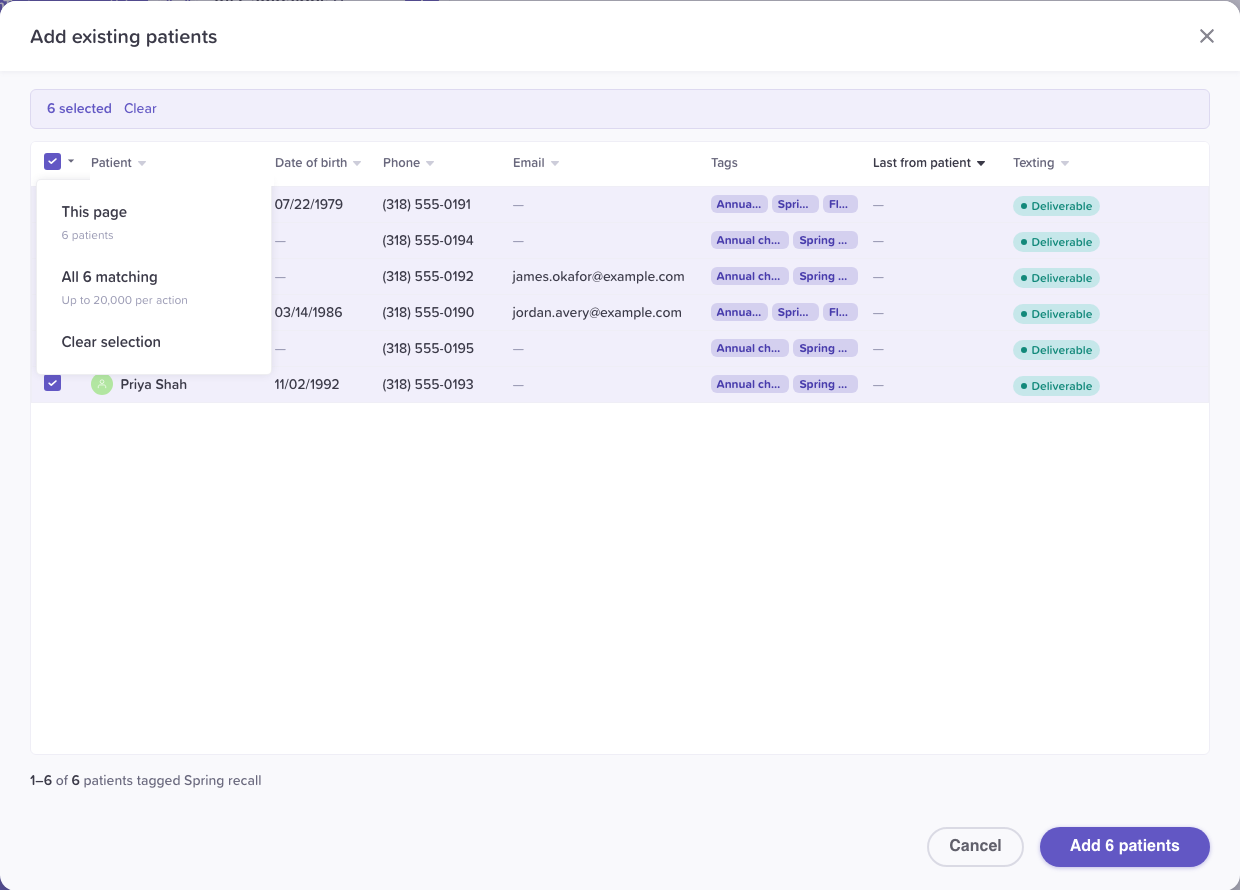
All N matching takes every page of the search.
Someone new: click New patient. Fill in First name, Last name, Phone or Email (one is required, so the patient can get the message), and optionally Date of birth, MRN and Tags. A new tag is created for everyone in your organization when you create the patient. Click Create and select: the patient is saved to your patients and comes back first in the list, ticked and marked New. Back (or ‹ Back to the list) returns without creating anyone. If a phone, email or MRN you type already belongs to a patient, the form says so and offers Select name instead, so you don't create a duplicate.
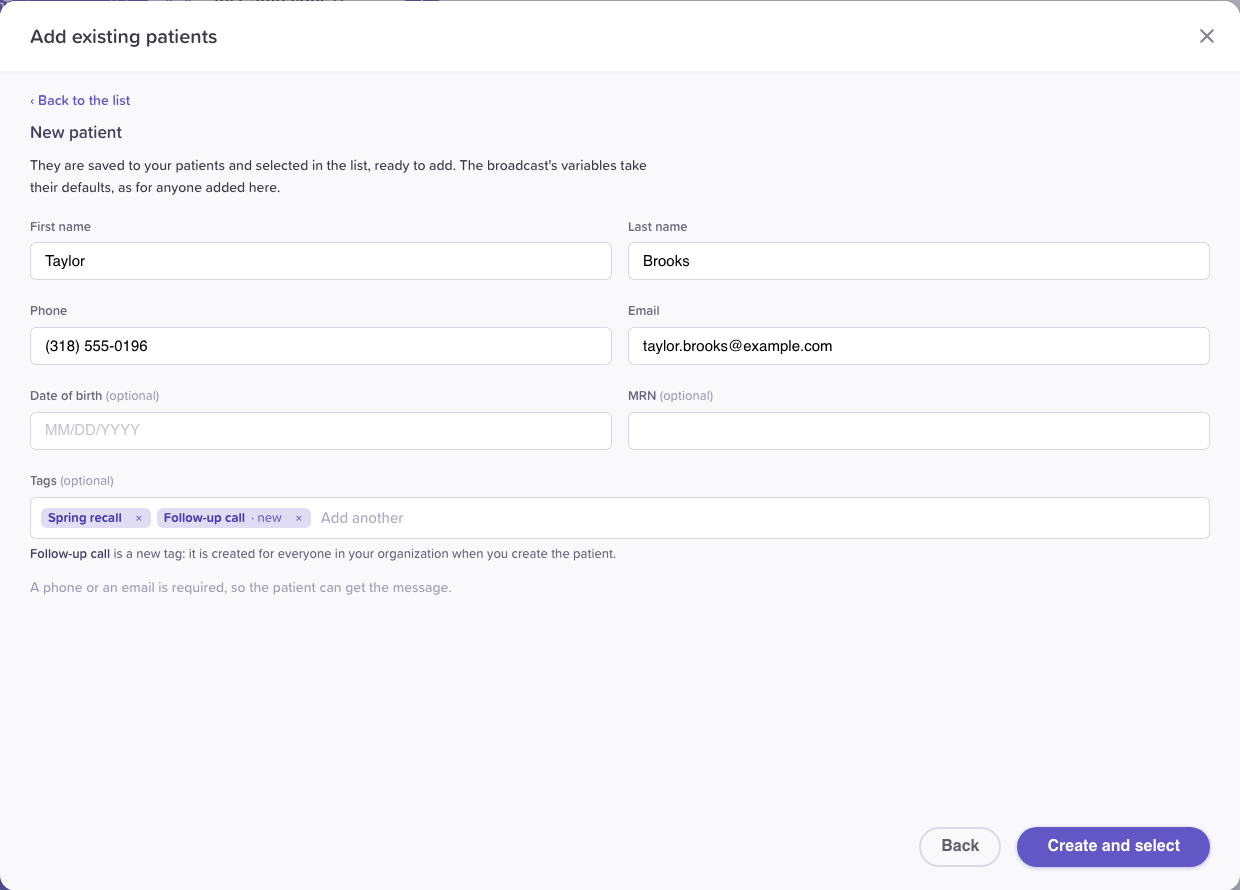
A new patient, with tags, without leaving the broadcast.
Click Add N patients (it shows "Counting…" while it counts a large selection). Patients added this way take the message variables' defaults; set their own values afterwards in the list (step 5).
4. Review the CSV's rows and add them
Step 2 of 2 · Review rows shows each row of your file and what will happen to it:
- Ready: a patient you already have, ready to add.
- New patient: nobody matches; the row creates a patient.
- Missing value: the row has no value for a variable the message uses, and the variable has no default.
- Already added: the patient is in the campaign already. If the file has new values for them, the row says Updates values instead.
- Counted once: the patient is in the file more than once.
- Invalid phone or Can't add: the row can't be added, with the reason.
Switch between All rows and Needs attention, and click the bin on a row to leave it out. Download rows that can't be added saves them as a CSV you can fix.
The footer sums it up, for example "5 new · 1 already in the campaign (0 with updated values)". Click Add 5 recipients (or Update N recipients when the file only changes values). A large file keeps adding in the background, with its progress above the recipients list.
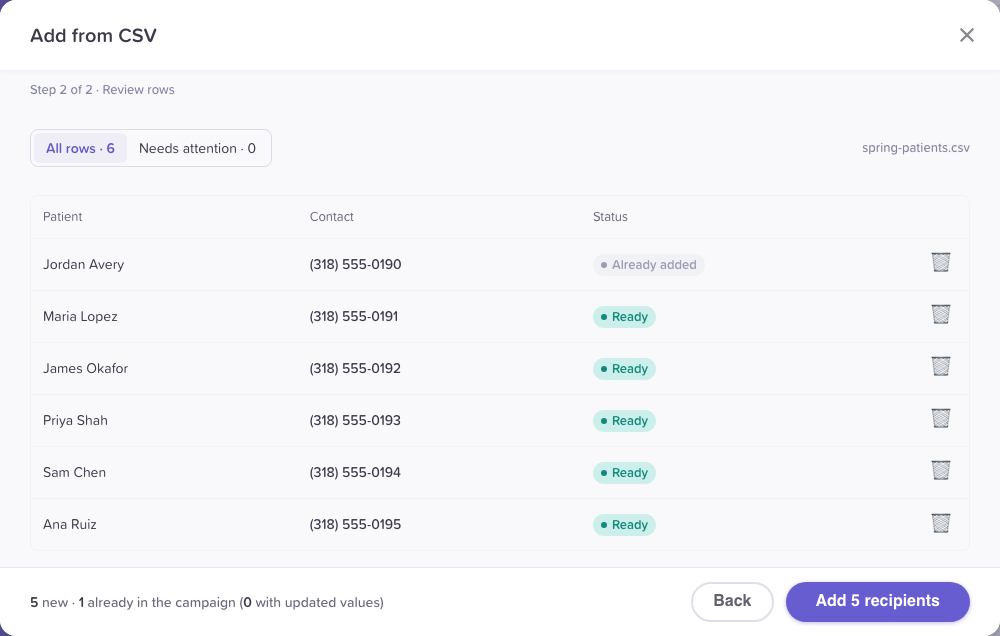
Every row says what will happen to it before you add.
5. Check the list
The recipients list is the same table in the wizard and on the campaign page.
- Filter: the menu above the list shows All, Ready (before sending starts) and Needs attention, each with a count. Search recipients finds a row by name, phone or email.
- Needs attention: when some recipients are missing a value, a bar says how many and that they're skipped when you send unless you fix them. Show them filters the list to them.
- Values: each variable has its own column. The + at the end of the header adds a variable by hand (see Personalize a broadcast with variables).
- Edit patient: the pencil next to a name corrects that recipient's details.
- Remove: tick recipients and click Remove N recipients in the bar that replaces the filter, then confirm.
In the wizard, click Continue to go on to the Message step.
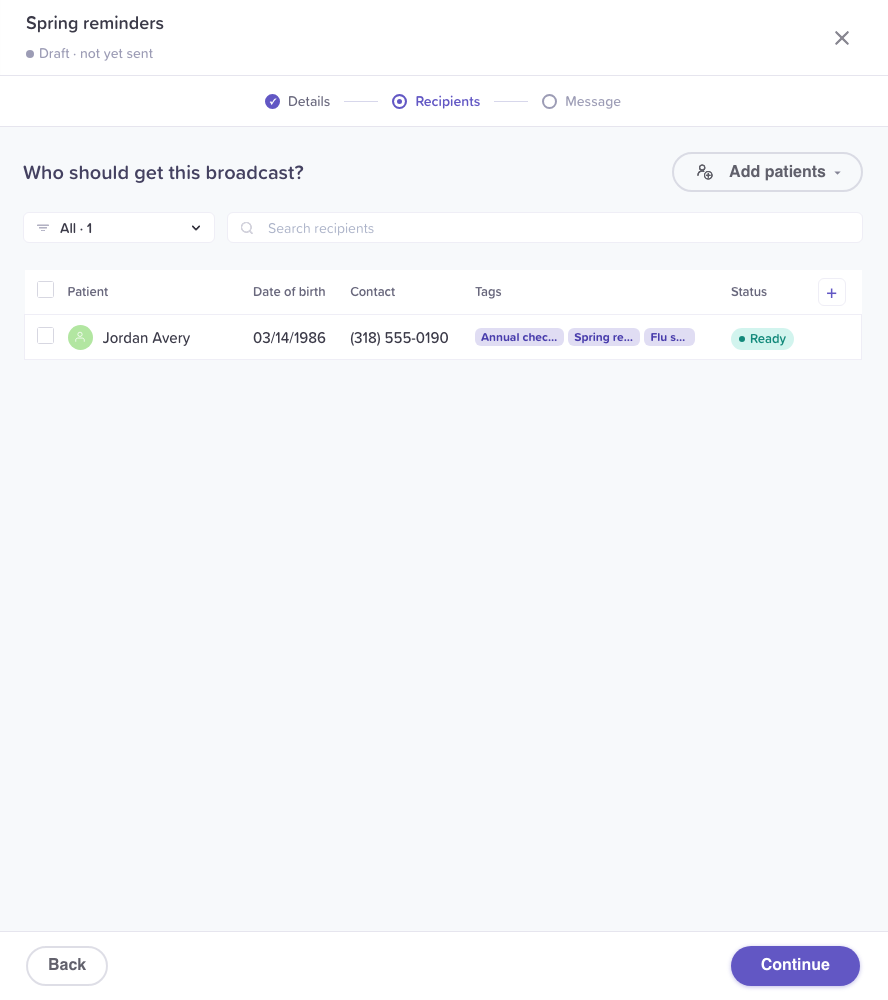
The recipients list, in the wizard.
How patients are matched
- Each CSV row is matched to a patient by MRN first, then phone, then email.
- A matched patient is added as they are. Their record isn't changed: a different name in the CSV doesn't rename them. Use Edit patient to fix a record.
- A row that matches no one creates a new patient from the mapped fields. It needs a phone or an email.
- Someone who's in your file twice is added once ("Counted once").
- Someone already in the campaign isn't added again. The file's non-blank values for them replace theirs ("Updates values"); a blank keeps their own. Recipients whose message is being sent or has been sent keep their values.
Edge cases / gotchas
- Adding to a campaign that has started sending. A new recipient who's missing a value the message needs can't be added unless that variable has a default. The review says so and keeps Add unavailable. Click Skip the rows with no variable, or set a default for variable: the dialog closes and Edit message opens at that variable (see Personalize a broadcast with variables).
- Archived patients aren't in Add existing. Restore them on the Patients tab first.
- One add can have up to 20,000 rows. Split a bigger list into several files and add them one at a time.
- Only
.csvfiles. Save a spreadsheet as CSV before uploading. Any spreadsheet app can export one. - A column can map to one thing. Two columns can't both be Phone, or both be the same variable; Map columns tells you which to change.
- No identifying column. If no column is mapped to Phone, Email or MRN, Map columns asks for one, because rows can't be matched to patients without it.
Related flows
- Broadcast messaging overview
- Create a broadcast campaign
- Personalize a broadcast with variables
- Send, edit and track a broadcast
- Import patients from a CSV: bring patients into the Directory without a broadcast.
Referenced by
Create a broadcast campaign
Create a broadcast campaign step by step: name it, pick the team, sender and message type, add recipients, write the message, and save it ready to send.
Personalize a broadcast with variables
Put each patient's own details in a broadcast with {{variables}}: built-in first and last names, values from your CSV, and defaults for anyone missing a value.