Personalize a broadcast with variables
Put each patient's own details in a broadcast with {{variables}}: built-in first and last names, values from your CSV, and defaults for anyone missing a value.
Overview
A variable is a placeholder in your message, written in double curly
braces, that's replaced with each recipient's own value when the message is
sent. Hi {{first_name}} becomes "Hi Maria" for Maria and "Hi James" for
James.
There are two kinds:
- Built in:
{{first_name}}and{{last_name}}, taken from the patient's record. - From your recipients: one per CSV column you import as a
Variable (
Appt Datebecomes{{appt_date}}), or per column you add with + in the recipients table's header.
Any variable can have a default, written after a |:
{{appt_date | your scheduled day}} uses "your scheduled day" for anyone
with no appointment date.
Prerequisites
- A campaign with recipients. To use your own variables, import at least one CSV column as a Variable, or add one with + in the recipients table's header. See Add recipients to a broadcast.
Worked example
The recipients come from this file. All three are new patients, so their names come from the file too:
| A | B | C | D | E | |
|---|---|---|---|---|---|
| 1 | Phone | First Name | Last Name | Appt Date | Dr. Name |
| 2 | (555) 010-0101 | Maria | Lopez | April 14 | Nguyen |
| 3 | (555) 010-0102 | James | Okafor | Lee | |
| 4 | (555) 010-0103 | Chen | April 21 | Okafor |
The message:
Hi {{first_name | there}}, this is a reminder of your appointment on {{appt_date | your scheduled day}} with Dr. {{dr_name}}. Reply C to confirm.What each patient gets:
| Patient | Message |
|---|---|
| Maria Lopez | Hi Maria, this is a reminder of your appointment on April 14 with Dr. Nguyen. Reply C to confirm. |
| James Okafor | Hi James, this is a reminder of your appointment on your scheduled day with Dr. Lee. Reply C to confirm. |
| Chen (no first name) | Hi there, this is a reminder of your appointment on April 21 with Dr. Okafor. Reply C to confirm. |
James has no appointment date, so the default "your scheduled day" is used.
The third patient has no first name, so the default "there" is used. Every
row has a doctor, so {{dr_name}} needs no default. Without the
| your scheduled day default, James would be skipped when you send, until you
filled in his date (step 4).
Steps
1. Insert a variable
- On the Message step (or in Edit message on the campaign page), put the cursor where the detail should go.
- Click Insert variable.
- Choose from:
- Patient: First name or Last name. Type a Fallback if
blank first (for example
there) to insert{{first_name | there}}. - From recipients: your campaign's variables, such as appt_date.
- Patient: First name or Last name. Type a Fallback if
blank first (for example
The variable is added at the cursor, for example {{appt_date}}. You can
also type a variable yourself; it must match a variable in the campaign, or
the top of the card says, for example, "{{room}} isn't a variable in
this campaign".
Under the message, Variables in this campaign lists each variable, how many recipients have a value, the CSV column it came from, and its default or "no fallback".
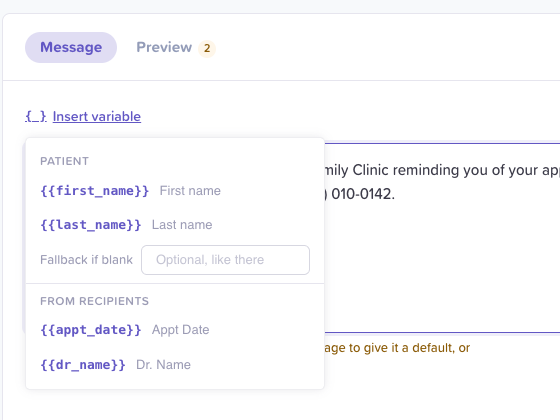
Insert variable adds the variable at the cursor.
2. Give a variable a default
You don't need to type the | syntax by hand:
- Click the variable in your message, for example
{{appt_date}}. - Default for {{appt_date}} opens: "Used when a recipient has no
Appt Date value", with how many have none. Under "If Appt Date is blank,
use:", type the text to use instead, for example
your scheduled day. - Click Apply. The variable becomes
{{appt_date | your scheduled day}}.
To take a default off, click the variable and choose Remove default.
Defaults belong to that spot in the message. If {{appt_date}} appears
twice, each one can have its own default. You can also give a variable a
default for every message from its column header in the recipients table
(Edit variable…).
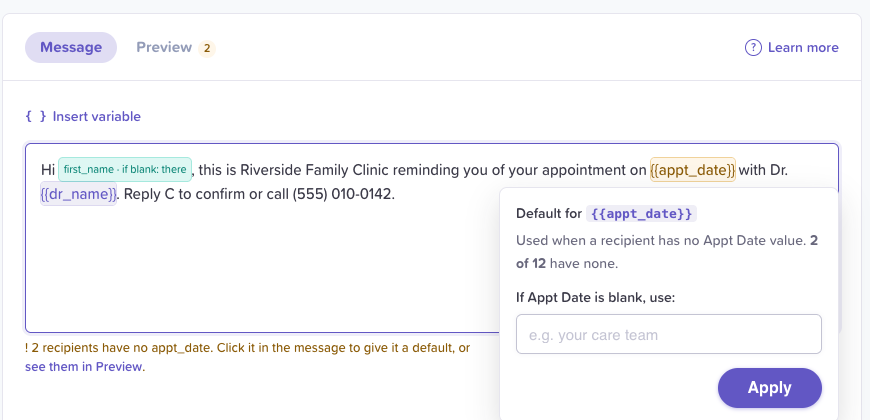
A default is the text you type in the box, not the variable's name.
3. Preview each recipient's message
- Click Preview at the top of the message card. A number next to it counts recipients that need attention.
- Pick a recipient under Preview as, or step through them with the arrows. A line under it says "All values present." or which value is missing or uses a default.
For a Secure text with link, the preview has two parts: Text message, the notice with the link ("The same for everyone. Your message isn't in it."), and Secure page, after they tap, your personalized message with its length against the 40,000-character limit. For an Insecure text, it shows the one text message from your number, against the 1,600-character limit.
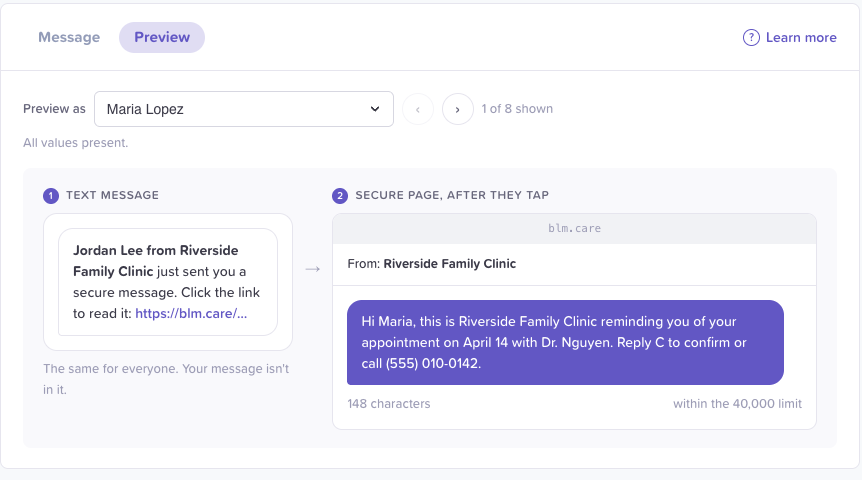
For a Secure text with link, your message is on the secure page, not in the text.
4. Check what's missing
The message is checked against every recipient as you type:
- Ready: the top of the card reads "Ready for all N recipients".
- Missing values: a warning under the message names the variable, for example "4 recipients have no appt_date. Click it in the message to give it a default, or see them in Preview."
- Unknown variable: "{{name}} isn't a variable in this campaign."
- Too long: a recipient's message would be longer than the limit: 1,600 characters for an Insecure text, 40,000 for a Secure text with link. Long values in your CSV count.
Missing values don't stop the campaign. When you save, "Some recipients have no value" asks you to set a default or Leave them out; recipients left out stay in the campaign, Not scheduled, and are skipped when you send. The Send dialog says how many are skipped and why.
An unknown variable or a message that's too long does stop it: the Send dialog shows one red banner that names each problem, who it affects and how to fix it, and offers Review recipients and Fix the message instead of sending.
Secure text with link or Insecure text
Variables work the same in both. What differs is where the personalized text appears:
- Secure text with link: the patient gets a text (and an email, if we have one) with a link. The personalized message is behind the link, in BloomText. It can contain PHI.
- Insecure text: the personalized message is the text message itself. It can't contain PHI, so don't put PHI in the message or in your variable values (for example, a diagnosis column).
Edge cases / gotchas
- Built-in names come from the patient record at send time. For a
patient who was already in BloomText,
{{first_name}}is the name on their record, not the one in your CSV. Fix a wrong name by editing the patient in the directory. first_nameandlast_nameare reserved. You can't import a CSV column as a variable with either name; map it to the First name or Last name patient field instead.- Variable names use lowercase letters, digits and
_. Headers are converted for you:Dr. Namebecomesdr_name. - Values are used exactly as written. If your CSV says
march 14, the message says "march 14". Fix formatting in the file before you upload. - Your message is kept while you work. If you go back a step, leave the page, or reload, the message you were typing comes back. It's saved to the campaign when you click Save campaign or Save message.
Related flows
- Broadcast messaging overview
- Create a broadcast campaign
- Add recipients to a broadcast
- Send, edit and track a broadcast
Referenced by
Add recipients to a broadcast
Add people to a broadcast campaign by picking patients from a table with search, tag filters and Select all, by creating a new patient with tags, or from a CSV with column mapping and a review of every row.
Send, edit and track a broadcast
Send a broadcast now or schedule it in any time zone, set the pace, pause and resume, follow each recipient's status, edit the message mid-send, export logs, and archive.