Import patients from a CSV
Admins bring a spreadsheet of patients into the Directory: map the columns, review who is new and who is already there, tag everyone in the file, and choose whether patients already in the Directory are left as they are, filled in or updated.
Overview
Import patients brings a spreadsheet of patients straight into the Directory, without going through a broadcast. In three steps you map the file's columns, review how each row matches the patients you already have, and choose the tags and what happens to the patients who are already there. The import then runs on its own, and the Patients tab shows its progress and its result.
Only organization admins can import. Other members don't see the import icon, and BloomText refuses an import from anyone who isn't an admin.
Prerequisites
- You're an admin of the organization.
- A
.csvfile with a header row and at least one column that identifies each patient: Phone, Email or MRN. Any spreadsheet app can save one (in Excel: File › Save As › CSV). - At most 50,000 rows, 100 columns and 10 MB.
Example file, spring-patients.csv:
| A | B | C | D | E | F | |
|---|---|---|---|---|---|---|
| 1 | First Name | Last Name | DOB | MRN | Mobile | Insurance |
| 2 | Jordan | Avery | 04/12/1988 | A010400 | (206) 555-0187 | Aetna |
| 3 | Maria | Lopez | A010401 | (206) 555-0101 | Aetna | |
| 4 | James | Okafor | 01/02/1951 | (206) 555-0102 |
Steps
1. Open Import patients
On the Patients tab of the Directory, click the import icon to the left of + ("Import patients from CSV"). + still adds one patient (see Add and manage patients).
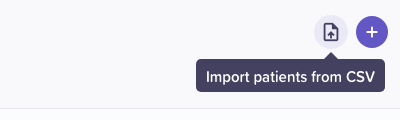
The import icon sits left of +. Only admins see it.
2. Choose a CSV file
Click the drop zone or drag a .csv file onto it, then click Continue.
If the file can't be read, the drop zone says why and what to fix, for
example a file over 50,000 rows ("Split it into files of up to 50,000 rows
and import each; patients in more than one file are matched, not added
twice"), over 10 MB, over 100 columns, empty, or not a .csv.
3. Map the columns
Step 1 of 3 · Map columns lists each column of your file with a sample of its values. Set Import as for each one:
- Patient field: Phone, First name, Last name, Date of birth, MRN or
Email. Common headers (
Phone,First Name,DOB,Email…) are matched for you and show Matched. - Don't import: the column is skipped (Skipped). Columns that aren't patient fields, such as Insurance, start here. A Directory import has no message variables.
Map at least one Phone, Email or MRN column, so each row can be matched to a patient; until you do, Next: review rows stays unavailable.
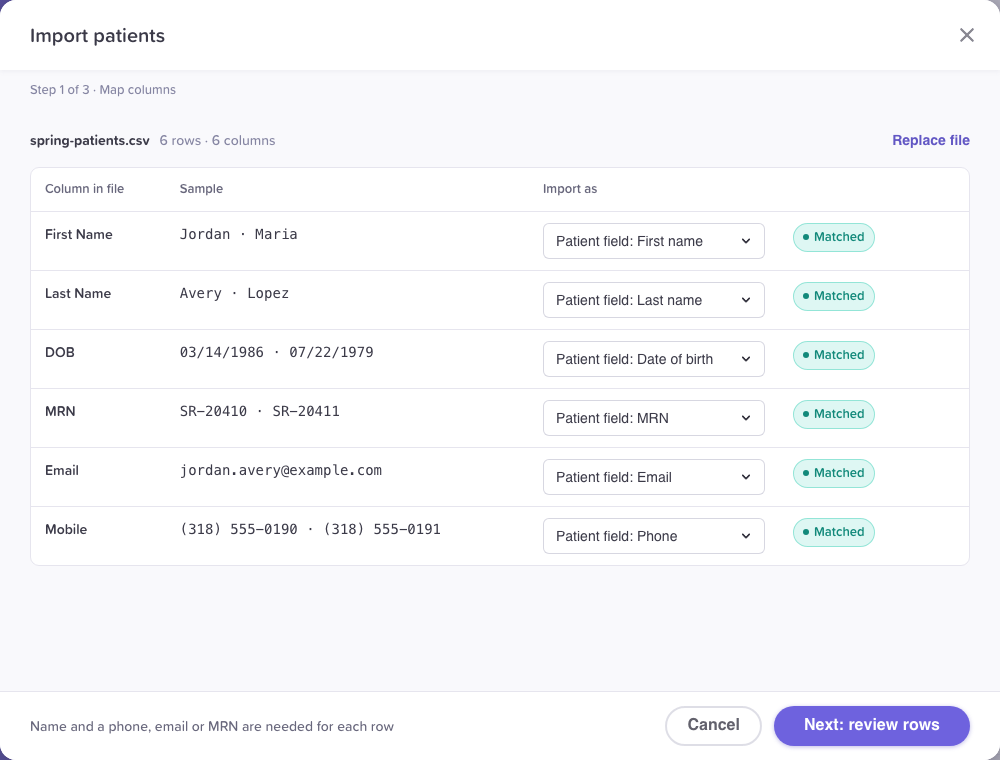
Each column goes to a patient field or is skipped.
4. Review the rows
Step 2 of 3 · Review rows shows how each row matches the Directory:
- New: nobody in the Directory has this MRN, phone or email; the import creates the patient.
- In the Directory: the row matches a patient you already have. The reason shows next to it: same MRN, same phone or same email.
- Needs attention: the row can't be imported, for example an invalid phone, no phone or email, an invalid date of birth, or a patient who is archived (an import never creates an archived patient again or restores them).
Switch between All rows, New, In the Directory and Needs attention; each shows its count. Click the bin on a row to leave it out of this import. Download rows that can't be imported saves those rows as a CSV with a Problem column, so you can fix them and import them later. A row that's in the file twice counts once. Large files page through 50 rows at a time.
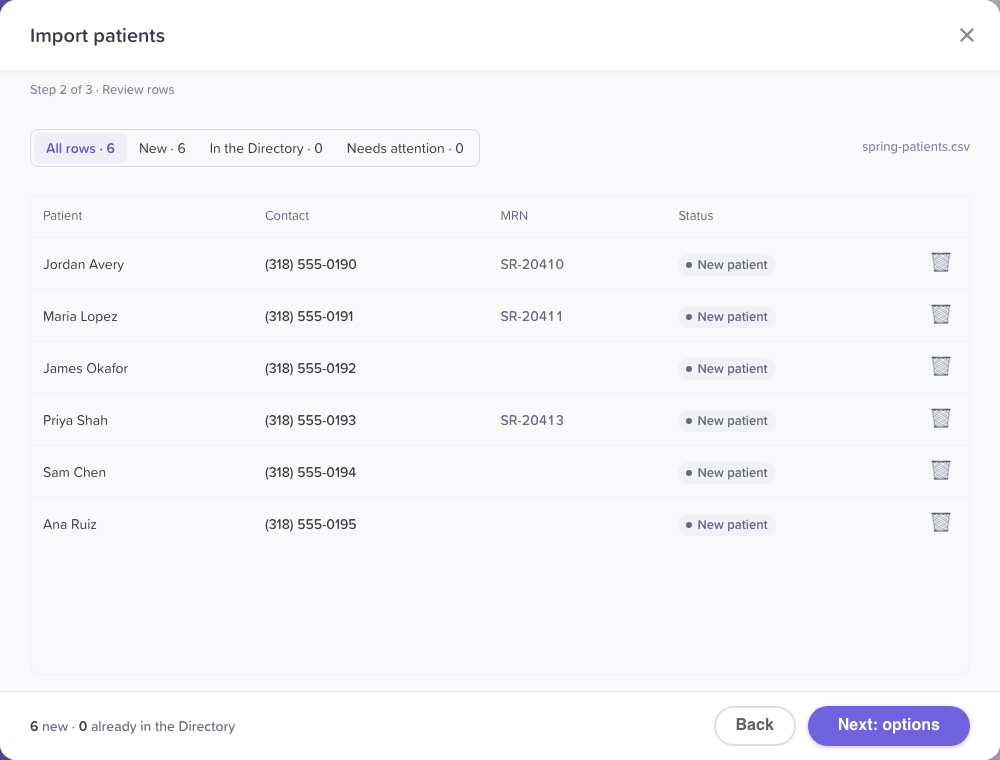
Every row says what will happen to it, and why it matched.
5. Choose tags and what happens to patients already in the Directory
Step 3 of 3 · Options:
-
Tags: every patient in the file gets them, new or already in the Directory. Pick existing tags or type a new name and choose Create tag; a new tag is created for everyone in the organization when the import starts.
-
The patients already in the Directory (matched by MRN, then phone, then email):
- Leave them as they are: only the tags are added.
- Fill in what's missing: a blank date of birth, email or MRN takes the file's value. Nothing is overwritten.
- Update them from the file: the file's non-blank first name, last name, date of birth, email and MRN replace theirs. A blank cell in the file never erases a value.
A phone number never changes in an import, whichever you choose: a phone carries the patient's texting and opt-out state.
The footer sums it up, for example "924 new · 307 already in the Directory, left as they are · all 1,231 tagged · 9 can't be imported", and the button names it: Import 924 · tag 1,231.
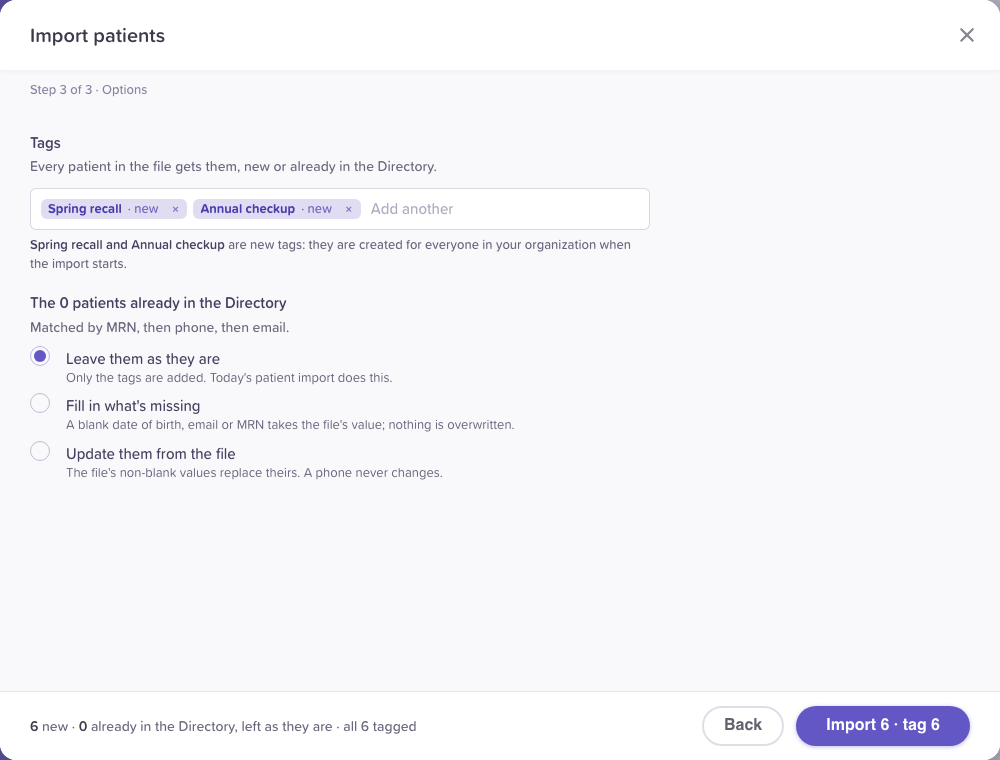
Tags go on everyone in the file; the choice applies only to patients you already have.
6. Follow the import
The dialog closes and the import runs in the background. A progress bar shows above the patient table ("Importing spring-patients.csv · 480 of 1,231 patients"), and any admin who opens the Patients tab sees it. When it finishes, a line reports what happened, for example:
Imported spring-patients.csv. 924 new patients; 307 were already in the Directory and were left as they are. All 1,231 are tagged Waitlist and Spring recall. 9 rows couldn't be imported: download them · show the 1,231 patients
show the N patients filters the table by the tag the import created. × hides the line.
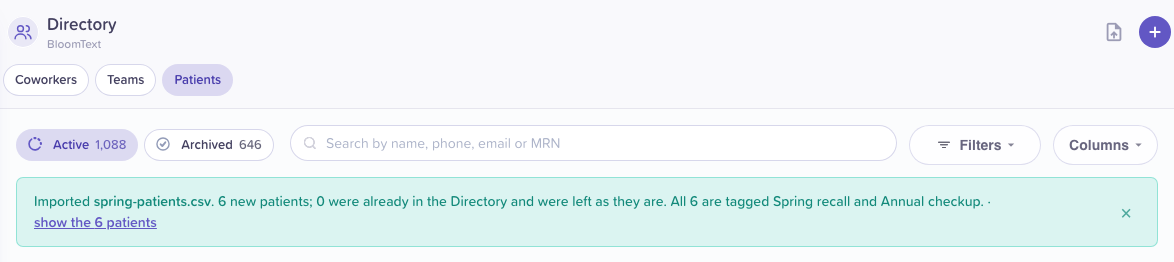
The result stays on the Patients tab until you dismiss it.
How patients are matched
- Each row is matched to a patient in your organization by MRN first, then phone, then email, the same way a broadcast's CSV is matched.
- A phone or email that two people share (for example a family) counts as the same patient. With Fill in or Update, check the same phone and same email rows on the review step before you import.
- Importing the same file again creates nobody twice: rows already imported now match the patients they created.
Edge cases / gotchas
- One import at a time. While an import runs, starting another says one is already running.
- If an import stops (for example the connection to the server was lost), the line says how far it got and offers Import the file again: the patients already in are matched, not added twice.
- Rows that couldn't be written. If saving some rows fails, the result line says how many and offers to download them or import the file again. The download lists the first 1,000 such rows and says so when there are more; importing the file again finishes them all.
- Opted-out numbers. A patient whose number opted out of texts is imported like any other and stays opted out. An import never sends a message.
- No undo. Values filled in or updated aren't recorded, so they can't be put back automatically. Review the matches first.
Related flows
- Patients in the Directory
- Add and manage patients
- Add recipients to a broadcast: a broadcast's own CSV import adds patients to a campaign.
Referenced by
Add and manage patients
Add a patient with tags, open a patient's side panel, tag many patients at once, add them to a broadcast, and archive or restore them.
Administrative features
Manage roles, members and teams, approve invite requests, hide patient phone numbers from users, change organization policies, audit activity, and manage subscriptions.