Patients in the Directory
The Directory's Patients tab lists every patient in your organization: search, filter by tag, date or texting status, choose columns, select patients for a bulk action, and see who is archived.
Overview
The Patients tab of the Directory is one table of every patient in your organization. From it you can:
- Find patients by name, phone, email or MRN, and filter by tag, dates and texting status.
- Tag patients, one at a time or many at once. Tags are shared by everyone in your organization.
- Open a patient in a side panel to see their details, tags and recent chats, start a chat, or add them to a broadcast.
- Archive patients you no longer text (admins), and restore them later.
- Add patients one at a time with +, or import a spreadsheet of them (admins).
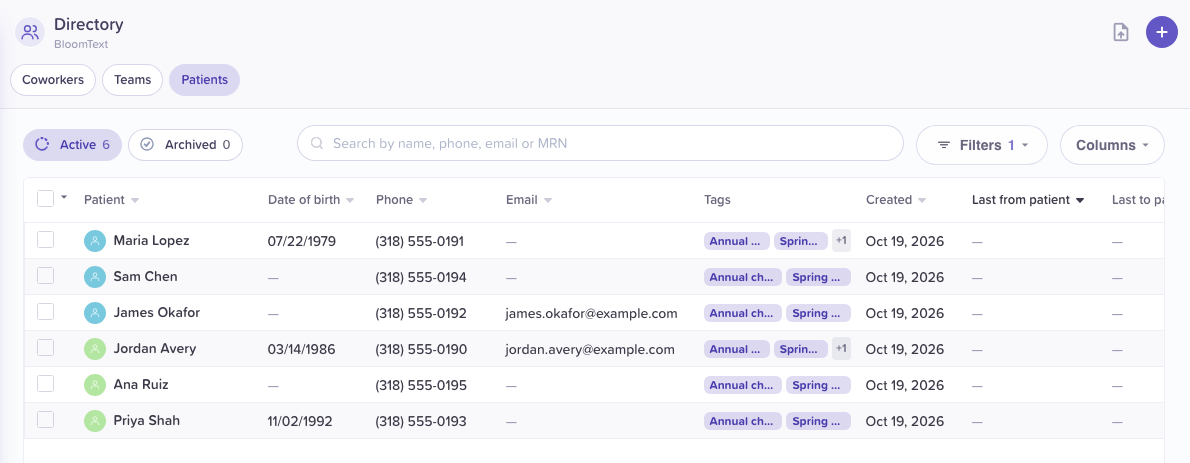
The Patients tab, filtered by one tag.
Prerequisites
- Your organization has patient messaging. If it doesn't, the Patients tab offers to request it.
- Admin rights for archiving, restoring and importing. Everything else on the tab works for every member.
Steps
1. Open the Patients tab
Open the Directory. Under its header are three chips: Coworkers, Teams and Patients. Click Patients.
The header keeps + ("Add") on the right, to add one patient (see Add and manage patients). Admins also see the import icon to its left (see Import patients from a CSV).
2. Find patients
- Search: type in Search by name, phone, email or MRN. The footer says how many match, for example "1–5 of 5 patients matching “Avery”".
- Filters: click Filters to narrow the table. Once a filter is on,
the button shows how many, for example Filters 1.
- Tags: tick one or more tags. Each shows how many patients have it.
- Created and Last activity: a from and a to date.
- Texting: Deliverable, Opted out, Blocked by admin or Can't receive texts.
- Clear filters turns them all off.
When nobody matches, the table says "No active patients match these filters."
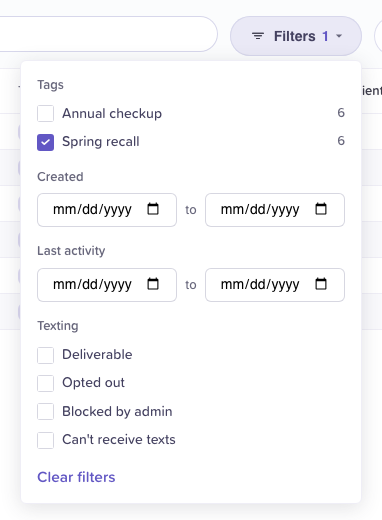
Filters, with one tag ticked.
3. Choose the columns
Click Columns and tick the columns you want: Date of birth, Phone, Email, Tags, Created, Last from patient, Last to patient and Texting. All are on at first. The Patient column always shows.
The Tags column shows a patient's first two tags, then +N for the rest. Open the patient to see them all.
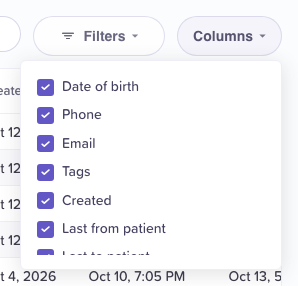
Columns. The menu scrolls when it doesn't fit.
4. Switch between Active and Archived
Active and Archived sit above the search, each with its count, for example "Active 1,082" and "Archived 646".
The Archived view lists patients an admin archived, with the date and who archived them. Its search reads Search archived patients by name, phone, email or MRN. Archived patients can't be added to a broadcast; an admin can restore them (see Add and manage patients).
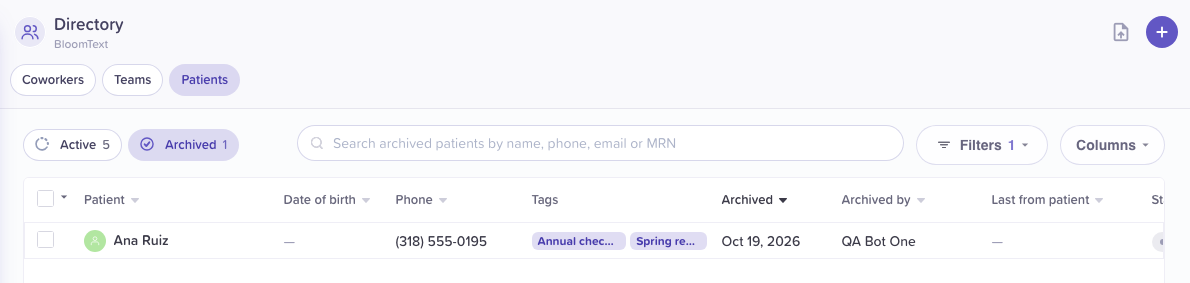
Archived patients stay findable, and an admin can restore them.
What the Texting column means
- Deliverable: texts can reach this patient.
- Opted out: the patient replied STOP, or someone marked them opted out. Broadcasts to them aren't sent.
- Blocked by admin: an admin blocked the number.
- Can't receive texts: the number can't get texts.
Related flows
Referenced by
Send, edit and track a broadcast
Send a broadcast now or schedule it in any time zone, set the pace, pause and resume, follow each recipient's status, edit the message mid-send, export logs, and archive.
Add and manage patients
Add a patient with tags, open a patient's side panel, tag many patients at once, add them to a broadcast, and archive or restore them.