Add and manage patients
Add a patient with tags, open a patient's side panel, tag many patients at once, add them to a broadcast, and archive or restore them.
Overview
Everything you do with patients one at a time or in bulk starts on the Directory's Patients tab (see Patients in the Directory):
- + adds one patient, with tags.
- A row opens the patient's side panel.
- Ticking rows shows a selection bar with Add tag, Add to broadcast and, for admins, Archive.
Tags are shared by everyone in your organization, and anyone can create one. Use them to group patients, for example by recall or by campaign, then filter the table or a broadcast's picker by them.
Prerequisites
- Access to the Patients tab.
- Admin rights to archive or restore patients.
Steps
1. Add a patient
- Click + in the Directory header. Add a patient opens.
- Fill in the patient's details: First Name, Last Name, Email, Phone (with its country code), Date of Birth and MRN.
- Under Tags, type to search ("Search or create a tag") and pick a tag. To make a new one, type its name and choose + Create tag “name”. A new tag shows · new, and the form says it's created for everyone in your organization when you add the patient. Backspace removes the last tag; Esc closes the list.
- Click Add. The new patient's side panel opens.
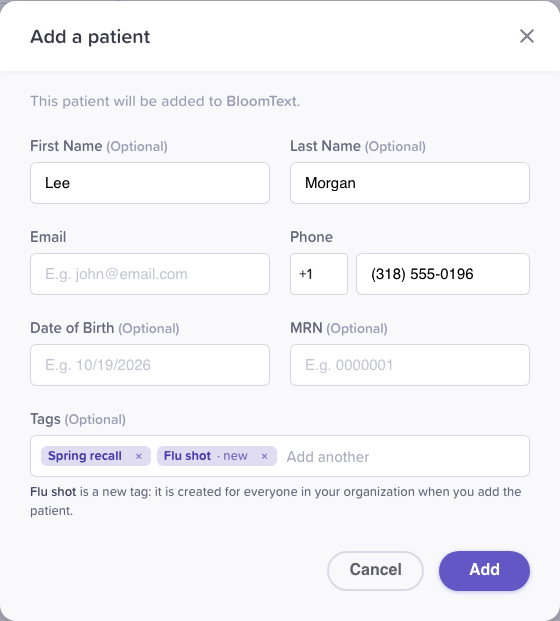
A new tag is only created when you add the patient.
2. Open a patient
Click a patient's row. The side panel shows:
- General Information: date of birth, phone, texting status, email, MRN and when they were created. Mark opted out, Block number and Edit details are here.
- Message Activity: the last message from and to the patient.
- Tags: click × on a tag to remove it, or Add tag to add one.
- Recent Chats, with Create a chat when there are none.
At the top, Start a chat opens a new chat with the patient over the table; closing it leaves the table as it was. At the bottom, Add to broadcast adds the patient to a campaign, and admins see Archive patient (on an archived patient, Restore patient).
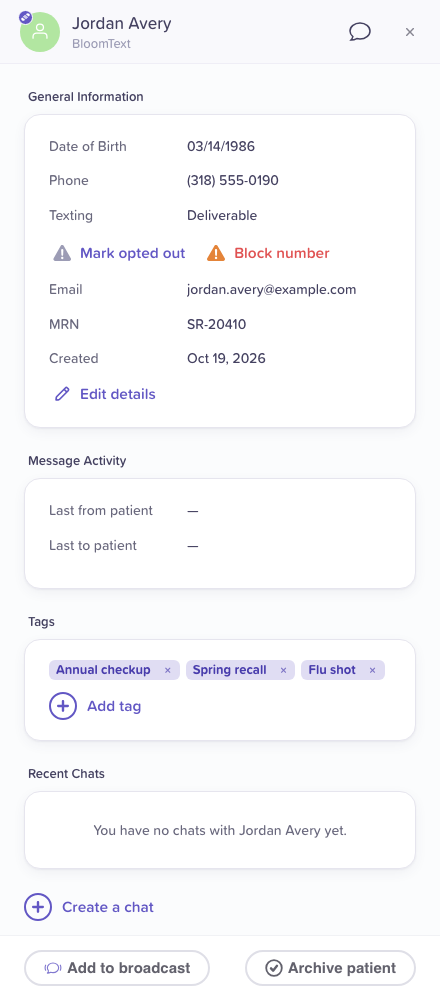
One patient, with everything you can do for them.
3. Select patients
Tick the box on each row you want. The search and filters give way to a selection bar: "2 selected", Clear, and the actions.

The selection bar replaces the search while patients are selected.
To select more than one page, click the arrow next to the header checkbox:
- This page: every patient on this page.
- All N matching: every patient the search and filters match, up to 20,000 per action.
- Clear selection.
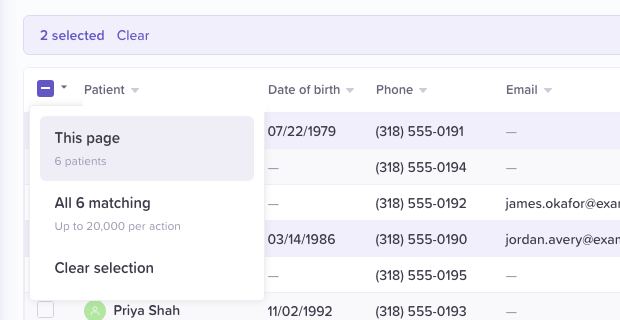
All N matching covers every page of the search.
4. Tag patients
- Select the patients and click Add tag.
- Pick a tag from the list (each shows how many patients have it), or type to search.
- To make a new tag, type its name. The dialog says "No tag is called “name” yet." Choose + Create tag “name” for everyone in your organization.
- Click Add tag, or Create and add tag for a new one.
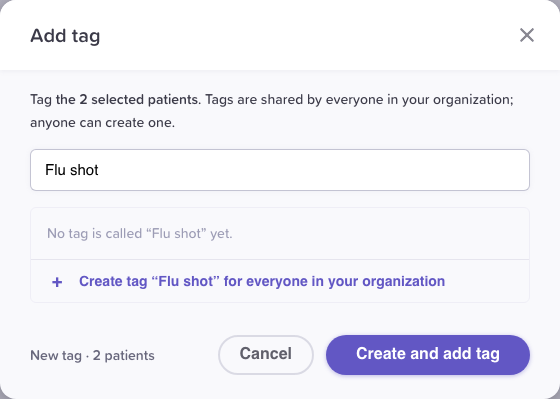
Creating a tag while tagging.
To take a tag off one patient, open them and click × on the tag.
5. Archive or restore patients
Admins archive patients they no longer text:
- Select the patients and click Archive (or Archive patient in the side panel).
- Read what happens: they leave the patient table and are removed from every chat they're in. Their chats stay in your inboxes.
- Type the number of patients to confirm, and click Archive N patients.
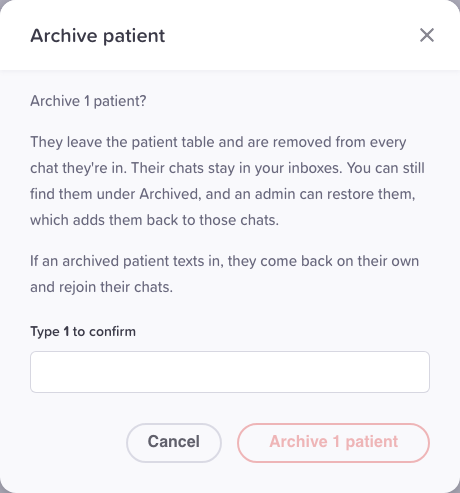
Archiving asks you to type the count first.
Each chat the patient was in gets a note, for example "Jordan Avery was archived by Sam Lee."
To restore, open Archived, select the patients and click Restore (or Restore patient in the side panel). There's no confirmation. They return to Active and rejoin the chats they left ("… was restored by …").
An archived patient who texts in comes back on their own and rejoins their chats ("… texted in and was restored.").
Edge cases / gotchas
- Members can't archive. Their selection bar says "Only admins can archive", and the side panel has no Archive patient.
- Archived patients can't get a broadcast. In the Archived view the bar says "Archived patients can't be added to broadcasts". Restore them first.
- Tags are shared. Removing a tag from a patient doesn't delete the tag; other patients keep it.
Related flows
Referenced by
Patients in the Directory
The Directory's Patients tab lists every patient in your organization: search, filter by tag, date or texting status, choose columns, select patients for a bulk action, and see who is archived.
Import patients from a CSV
Admins bring a spreadsheet of patients into the Directory: map the columns, review who is new and who is already there, tag everyone in the file, and choose whether patients already in the Directory are left as they are, filled in or updated.