Send, edit and track a broadcast
Send a broadcast now or schedule it in any time zone, set the pace, pause and resume, follow each recipient's status, edit the message mid-send, export logs, and archive.
Overview
A saved campaign doesn't send anything until you start it. From the campaign page you can:
- Send now or schedule the send, at a pace you choose.
- Follow the campaign's status and each recipient's status.
- Pause and resume sending.
- Edit the message for the people who haven't received it yet.
- Add more recipients, remove recipients, and archive the campaign when you're done.
Prerequisites
- A campaign with a saved message and recipients. See Create a broadcast campaign.
Steps
1. Open the Send dialog
- Click Broadcast in the left sidebar and open the campaign.
- Click Send… at the top of the campaign page. On a paused campaign the button reads Resume….
BloomText checks the message against every recipient first. If something stops the send (a variable that isn't in the campaign, or a message that's too long), the dialog shows one red banner that names each problem, who it affects and how to fix it, for example "2 patients' messages are over the 1,600-character limit." Review recipients and Fix the message replace the send button. Recipients with no value for a variable and no default don't stop it: they're skipped, and a note says how many and why. See Personalize a broadcast with variables.
When the check passes, the top line of the Send dialog says how many patients will get the message and how long the longest one is, for example "300 patients will get this message · longest 107 of 40,000 characters".
- Number of messages to send is set to everyone who hasn't been sent the message. Lower it to send to only part of the list now; the people added earliest go first. The rest stay Not scheduled, and the hint under the pace says so.
- Time between messages sets the pace: As fast as possible (about 60 messages a minute) or One every 5 seconds, 10 seconds or 30 seconds. Messages go one at a time. The hint under it says how long the send takes, for example "About 60 messages a minute. 300 messages take about 5 minutes." The new pace is saved to the campaign when you send or schedule; closing the dialog without sending leaves it as it was.
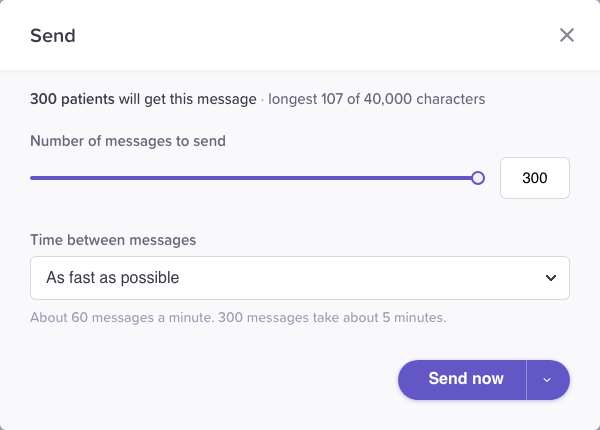
The Send dialog. The arrow next to Send now schedules it instead.
2. Send now or schedule
To send now, click Send now (Resume now on a paused campaign). Messages go out at the pace you chose.
To send later:
- Click the arrow on the right of Send now (its tooltip reads Schedule for later). The Schedule for later panel opens under the button.
- Pick a Date and a Time (in 15-minute steps). The time zone is your computer's, shown next to the time. To use another one, click Change next to Time zone and pick it, for example Eastern Time (ET).
- Click Schedule.
The panel says what happens, for example "All 300 start at this time, at the pace you picked. About 5 minutes." Schedule stays unavailable until you pick a time, and a time that has already passed can't be picked. Cancel, Esc or a click outside closes the panel and leaves the dialog open, so you can still click Send now.
When you click Schedule, the dialog closes and the campaign shows Scheduled · date, time, zone straight away. Each recipient reads Scheduled, with the time under Scheduled at.
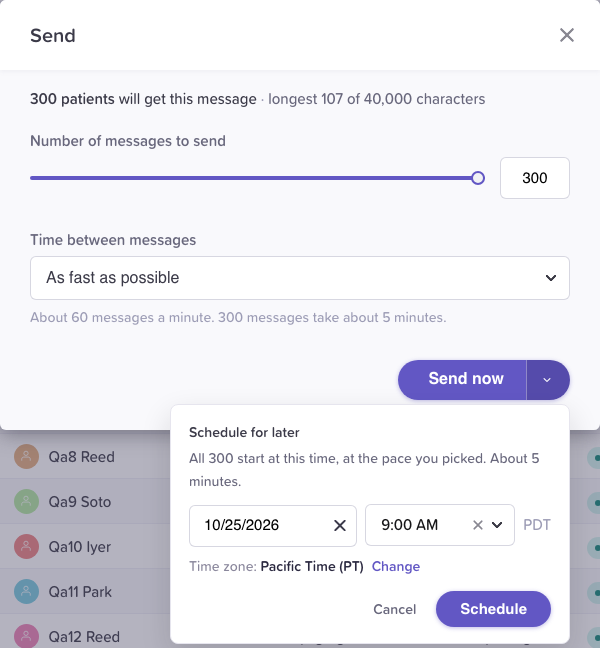
Scheduling. The time zone shows next to the time.
3. Track progress
The top of the campaign page shows where the campaign is:
| Status | Means |
|---|---|
| Not yet sent | Nothing has been sent or scheduled. |
| Scheduled · Wed, Dec 1, 2027, 9:00 AM PST | Waiting for its start time. |
| Running (sent/total) | Sending now. |
| Paused · N of M sent | Stopped partway. Resume… continues it. |
| Completed (sent/total) · date | Nothing is left to send. |
The bar under the buttons counts progress, for example "0 of 14 sent".
The recipients table lists every recipient with their status:
- Not scheduled: not part of a send yet.
- Scheduled: waiting for a scheduled time.
- Queued: next in line to send.
- Processing: being sent right now.
- Completed: sent.
- Failed: couldn't be sent. For an Insecure text, a number BloomText won't text shows the reason under the status, for example "Not deliverable: opted out" or "Not deliverable: can't receive texts".
Use the filter above the table to show one group, and Search recipients to find someone.
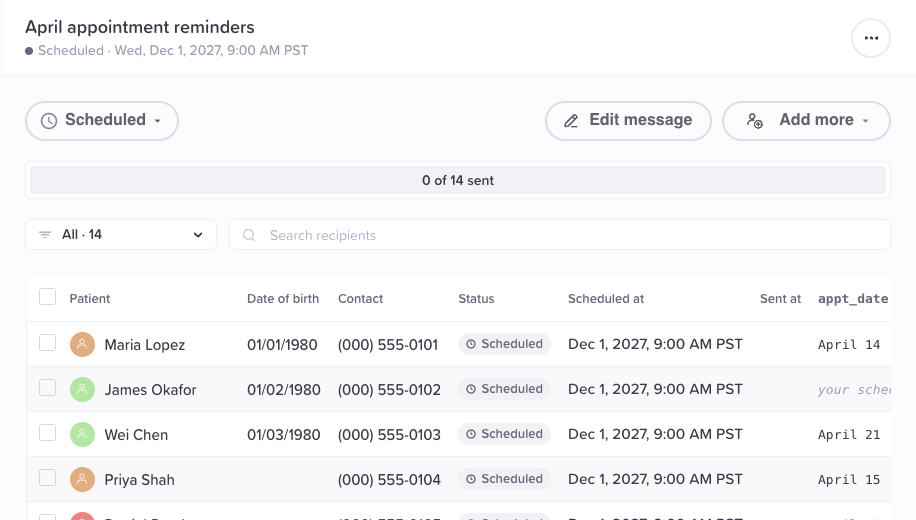
A scheduled campaign. Each row shows when it's due.
4. Pause and resume
- Running campaign: click Pause next to the status.
- Scheduled campaign: click Scheduled, then Pause….
Pause the campaign? asks first: "Sending stops. The N messages not sent yet go back to Not scheduled; Resume sends them. Messages already sent aren't affected." Click Pause to confirm, or Keep sending.
To continue, click Resume…. The Resume dialog works like Send: click Resume now, or use the arrow next to it to schedule the rest.
Pausing a scheduled campaign is also how you cancel it, or send it early: pause it, then click Send… and Send now.
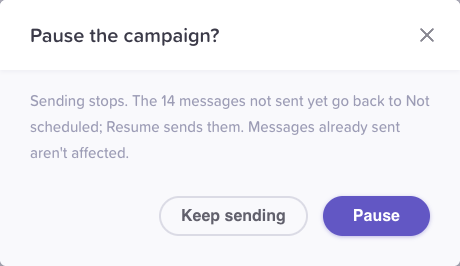
Pausing asks first and says what happens to unsent messages.
5. Edit the message
- Click Edit message at the top of the campaign page. The Edit message dialog opens with the message and its Preview.
- Make your changes. The top of the card shows whether it's ready for every recipient, for example "Ready for all 14 recipients".
- Click Save message. Messages that haven't gone out get the new text; messages already sent keep theirs.
Click Cancel to close without saving.
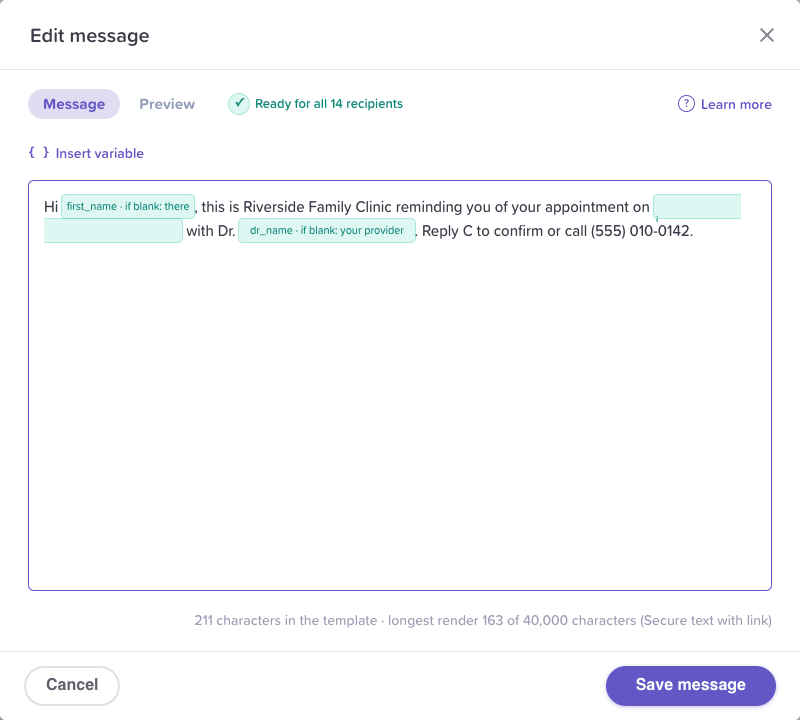
Edit message opens over the campaign page.
More from the campaign page
The ··· menu at the top right holds the rest: Edit campaign details, Export this campaign (admins only) and Archive campaign. Sending, editing the message and adding people have their own buttons on the page.
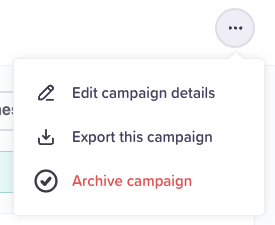
The ··· menu.
- Add more people: click Add more and choose Add existing or Add from CSV, as described in Add recipients to a broadcast. New people start as Not scheduled; send to them with Send….
- Remove recipients: tick them in the table and choose Remove from queue (they stay in the campaign, unsent) or Remove from campaign, then Confirm and remove.
- Replies: a patient's reply arrives in your inbox as a private one-to-one conversation. Click a patient's name in the table to open them.
- Export: admins can choose Export this campaign in the ··· menu to download the campaign's phone logs for a date range.
- Edit details: Edit campaign details reopens the Details step to rename the campaign. Team, sender and message type lock once a message has gone out.
- Archive: choose Archive campaign in the ··· menu, or Archive on the campaign in the list. It's unavailable while the campaign is running ("Pause the campaign to archive it"). A campaign with a saved message asks first ("It moves to the Archived tab, where you can still view it or unarchive it."); an unfinished draft is archived right away. Find it later in the Archived tab, where Unarchive brings it back.
Edge cases / gotchas
- Scheduled times use the time zone you picked. Someone in another time zone sees the same moment in theirs.
- One send can start up to 20,000 messages. With more people waiting, the dialog says "Up to 20,000 of the N unscheduled messages can be sent in this batch." Click Send… again afterwards for the rest.
- Recipients added later aren't sent automatically. They start as Not scheduled until you send to them.
- Numbers BloomText won't text. Your organization's list of opted-out (STOP), carrier-blocked, admin-blocked and unreachable numbers applies to every broadcast. In an Insecure text campaign those recipients show Failed with the reason. In a Secure text with link campaign the text with the link isn't sent to them, but the message is saved in their secure conversation and the row shows Completed. See Opt-outs.
- Verification. If BloomText hasn't verified your account, sending stops and the campaign says "Paused: broadcasts can't send until BloomText verifies your account." See Before you start.
- An archived campaign can't be changed. Unarchive it first to send, edit or add recipients.
Related flows
- Broadcast messaging overview
- Create a broadcast campaign
- Add recipients to a broadcast
- Personalize a broadcast with variables
Referenced by
Personalize a broadcast with variables
Put each patient's own details in a broadcast with {{variables}}: built-in first and last names, values from your CSV, and defaults for anyone missing a value.
Patients in the Directory
The Directory's Patients tab lists every patient in your organization: search, filter by tag, date or texting status, choose columns, select patients for a bulk action, and see who is archived.