Create a broadcast campaign
Create a broadcast campaign step by step: name it, pick the team, sender and message type, add recipients, write the message, and save it ready to send.
Overview
A new campaign is built in a three-step wizard: Details, Recipients and Message. Saving the message on the last step finishes the campaign. Nothing is sent until you send or schedule it from the campaign page (see Send, edit and track a broadcast).
This guide walks through the whole wizard with an example: an appointment reminder for patients exported from your scheduling system.
Prerequisites
- The Patient SMS Add-on, membership in a team with an assigned phone number, and a verified account. See Before you start.
- Your recipients. For the example, a CSV like this one
(
april-reminders.csv):
| A | B | C | D | E | |
|---|---|---|---|---|---|
| 1 | Phone | First Name | Last Name | Appt Date | Dr. Name |
| 2 | (555) 010-0101 | Maria | Lopez | April 14 | Nguyen |
| 3 | (555) 010-0102 | James | Okafor | Lee | |
| 4 | (555) 010-0103 | Chen | April 21 | Okafor |
Steps
1. Start a new campaign
- Click Broadcast in the left sidebar.
- Click the + button at the top of the campaign list.
The wizard opens on Details. The new campaign shows in the list as "Draft · not yet sent" until you save its message.
2. Fill in the details
-
Campaign Name: a name your team will recognize, for example "April appointment reminders". Patients don't see it.
-
Team: the team that sends the campaign, shown by its phone number. Only teams you belong to are listed.
-
Sender: the person the messages come from. It starts as you; pick someone else from the list if needed.
-
Message Type:
- Secure text with link: "We'll text each patient a secure link to your message. Can contain PHI."
- Insecure text: "We'll send each patient your message as a regular text message. Can't contain PHI."
Click More information next to the label for a side-by-side comparison.
-
Click Continue.
How fast messages go out is set when you send, in the Send dialog (see Send, edit and track a broadcast).
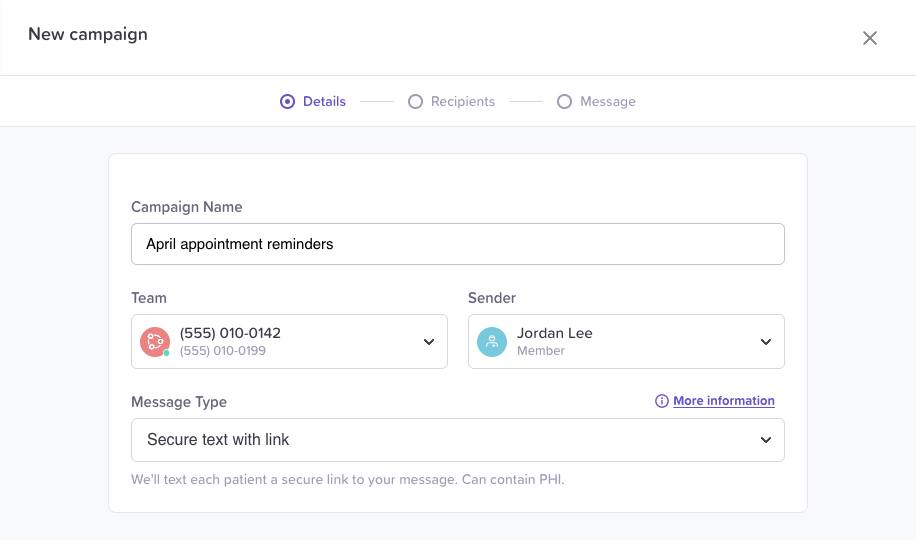
The Details step. The sender starts as you.
3. Add recipients
The Recipients step shows a list of everyone who will get the campaign. Click Add patients and fill it in either or both of two ways:
- Add from CSV: choose a file, then match its columns to patient fields
and variables on Step 1 of 2 · Map columns. For the example file,
Phone, First Name and Last Name are matched to patient fields
automatically. Set Appt Date and Dr. Name to Variable; they
become
{{appt_date}}and{{dr_name}}. Click Next: review rows, check the rows, and click Add 3 recipients. - Add existing: search or filter your patients by tag and tick them, or click New patient to create someone new. Click Add N patients.
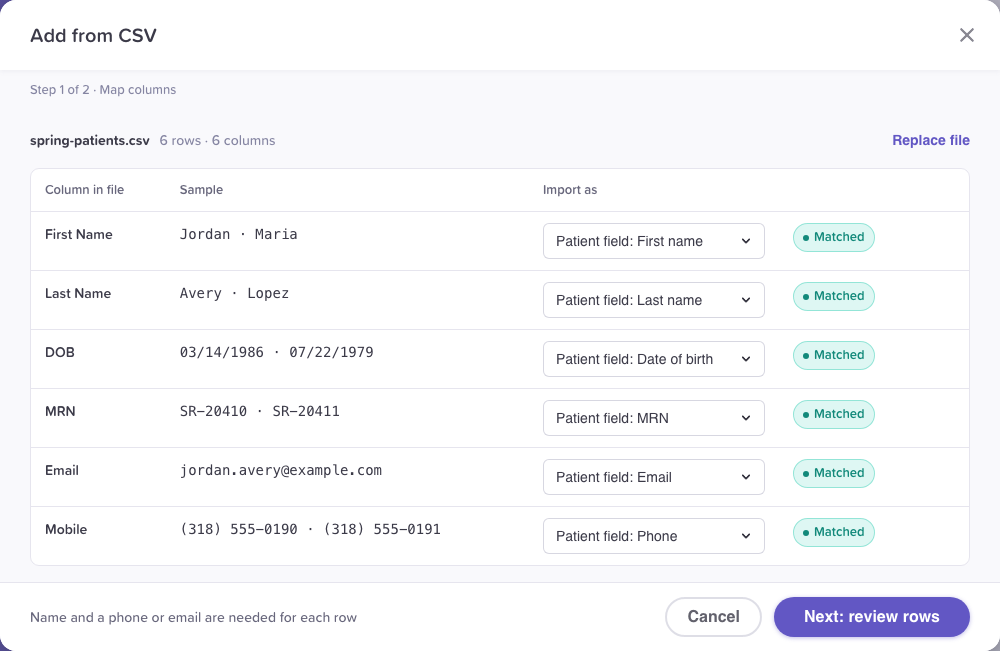
Map columns: each CSV column becomes a patient field, a variable, or isn't imported.
Each dialog adds people to the draft straight away. Before you continue, check the filter menu above the list: Needs attention shows recipients missing a value, who are skipped when you send unless you fix them.
The full detail on each method, matching, and errors is in Add recipients to a broadcast.
4. Write the message
- Type your message in the box.
- To personalize it, put the cursor where a detail should go, click Insert variable, and choose one. First name and Last name come from the patient's record; the others come from your recipients (here, appt_date and dr_name).
- Click a variable in the message to give it a default, used for anyone who has no value for it.
For the example:
Hi {{first_name | there}}, this is Riverside Family Clinic reminding you of your appointment on {{appt_date | your scheduled day}} with Dr. {{dr_name | your provider}}. Reply C to confirm or call (555) 010-0142.Under the message, Variables in this campaign lists each variable and how many recipients have a value. If some recipients have no value and the variable has no default, a warning under the message says so, for example "2 recipients have no appt_date. Click it in the message to give it a default, or see them in Preview." When every recipient is covered, the top of the card reads "Ready for all N recipients". Personalize a broadcast with variables explains variables, defaults and these checks.
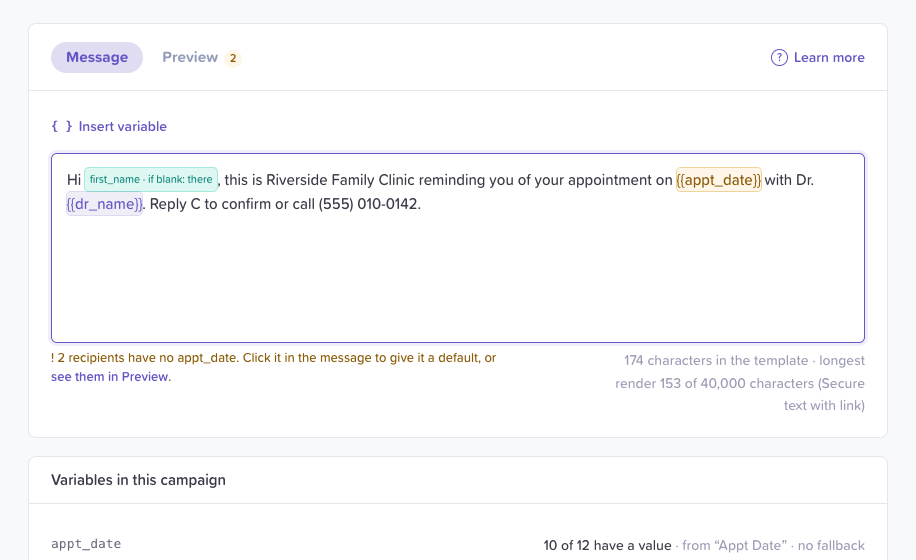
The warning under the message says which variable needs a default.
5. Preview and save
- Click Preview above the message to read it as each recipient will get it. Use Preview as or the arrows to switch recipients.
- Click Save campaign.
The campaign page opens. The campaign is ready, and nothing has been sent. To send it now or schedule it, see Send, edit and track a broadcast.
If some recipients still have no value for a variable, saving asks first ("Some recipients have no value"): set a default, or choose Leave them out. Left-out recipients stay in the campaign and are skipped when you send.
Edge cases / gotchas
- Leaving early keeps a draft. Close the wizard before saving the message and the campaign stays "Draft · not yet sent". Click it in the list to reopen the wizard at the step you left. Recipients you already added are still there.
- Going back doesn't lose work. Use Back or click a step's name to return to it. Recipients you added stay, and the message you were typing is kept until you save it or discard it.
- Team, sender and message type lock after the first message goes out. The Details step then says "Team, sender and message type are locked because this campaign has started sending." You can still rename the campaign.
Related flows
- Broadcast messaging overview
- Add recipients to a broadcast
- Personalize a broadcast with variables
- Send, edit and track a broadcast
Referenced by
Broadcast messaging overview
Send one message to many patients, personalized for each person. Create a campaign, add recipients from a CSV or your directory, then send now or schedule it.
Add recipients to a broadcast
Add people to a broadcast campaign by picking patients from a table with search, tag filters and Select all, by creating a new patient with tags, or from a CSV with column mapping and a review of every row.