Getting started on your smartphone
Install BloomText on iOS or Android, invite coworkers, send messages, take photos, record voice notes, and configure notifications.
Overview
This guide walks you through BloomText on a smartphone. The mobile app covers day-to-day messaging. A few advanced features — admin settings, changing plans — are only on the desktop and web apps.
Prerequisites
- A BloomText account. If you don't have one, start with Getting started with BloomText on a computer first.
- An iPhone running iOS, or a phone running Android.
Steps
1. Sign up (if you haven't already)
Did you get an invitation email? Open it and tap the link to accept.
Otherwise, create a new organization at app.bloomtext.com/#/welcome.
2. Download the app
3. Invite your coworkers
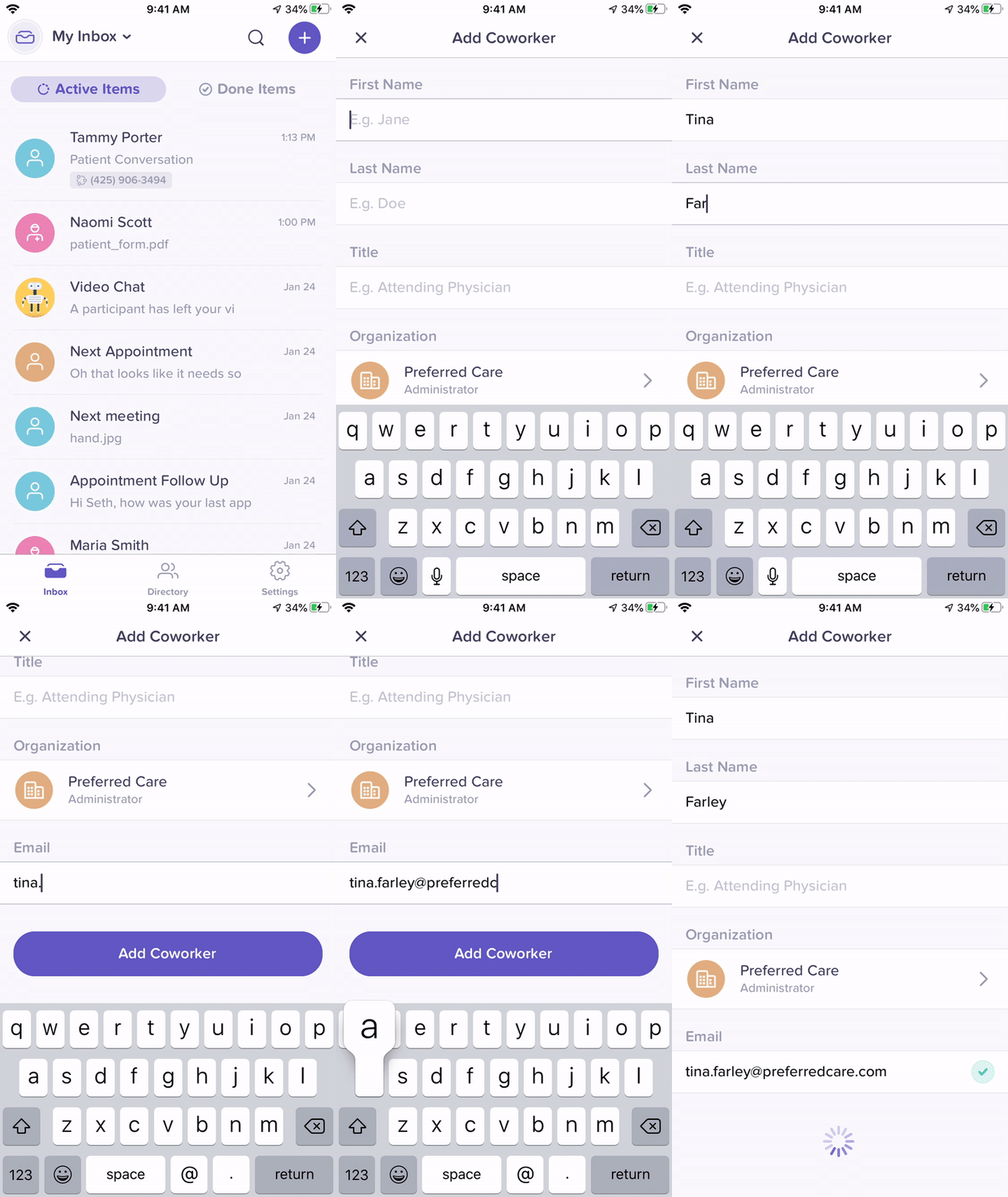
Open the Directory tab. Tap the purple + button. Enter your coworker's email address. They get an invitation email and show up in your directory once they accept.
4. Send your first message
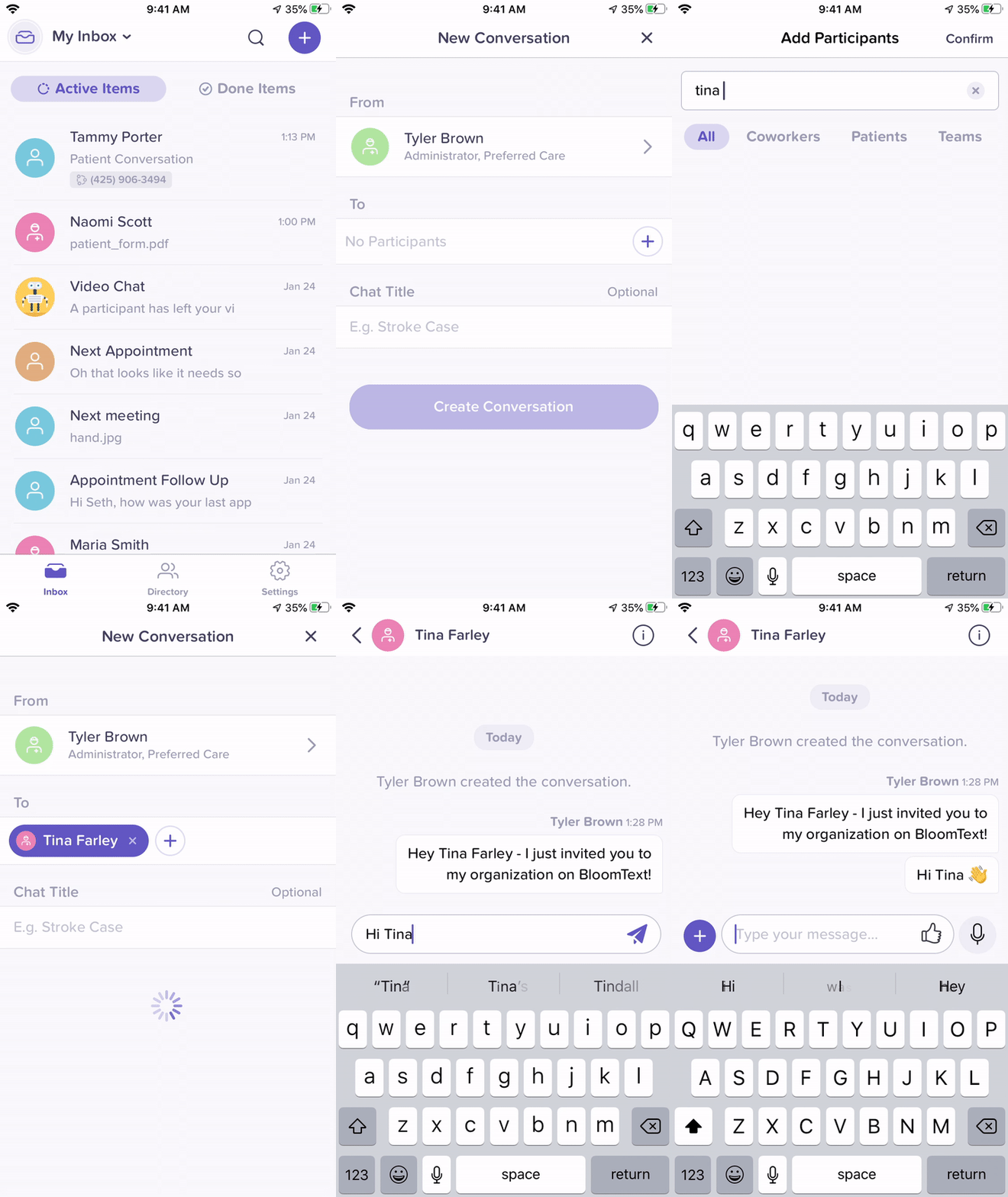
Open the Inbox. Tap the purple + button. Search for a coworker. Pick them. Type your message. Send.
5. Take a photo
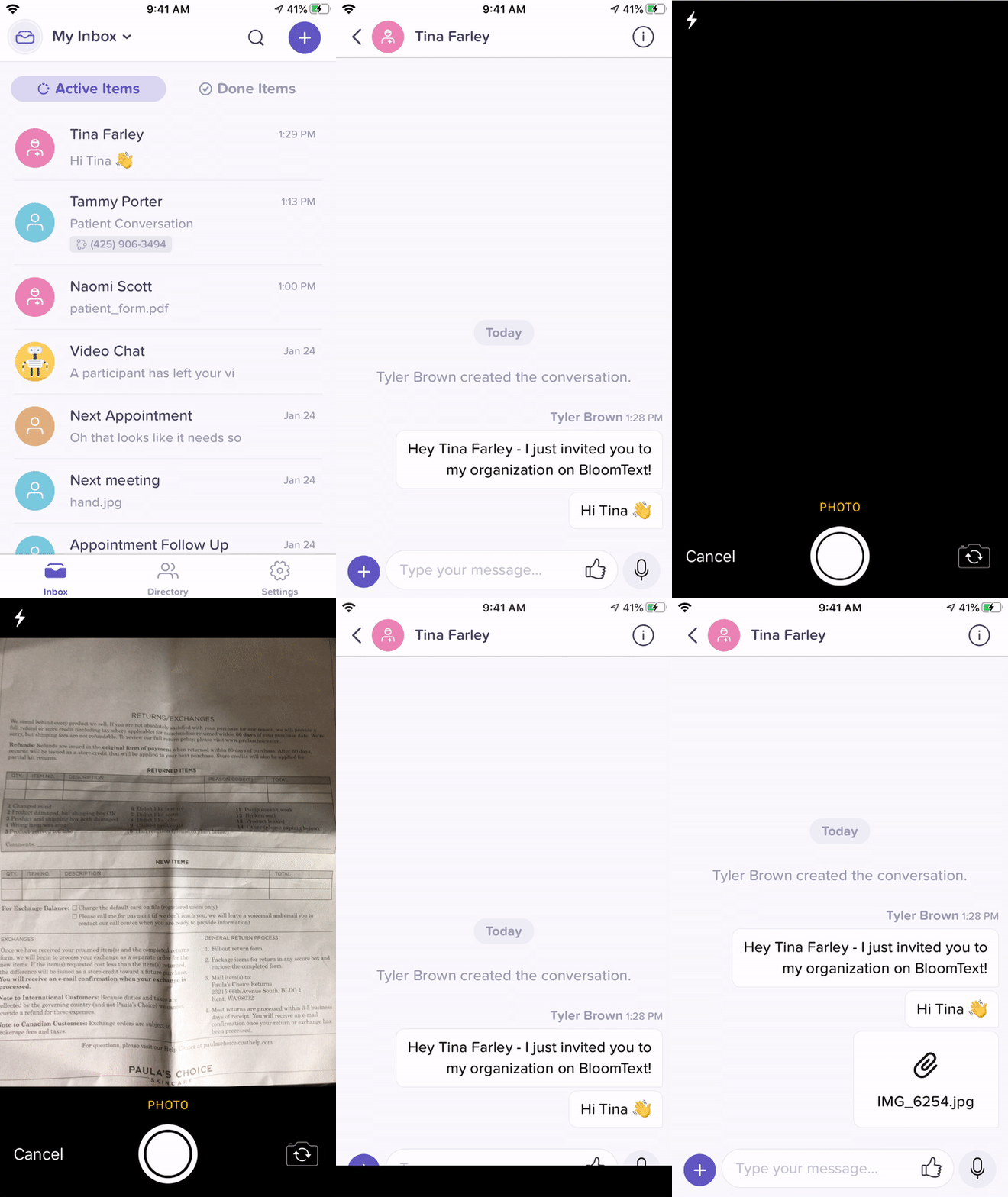
Open any conversation. Tap the + button to the left of the message box. Pick Camera or Photo library.
6. Record a voice message
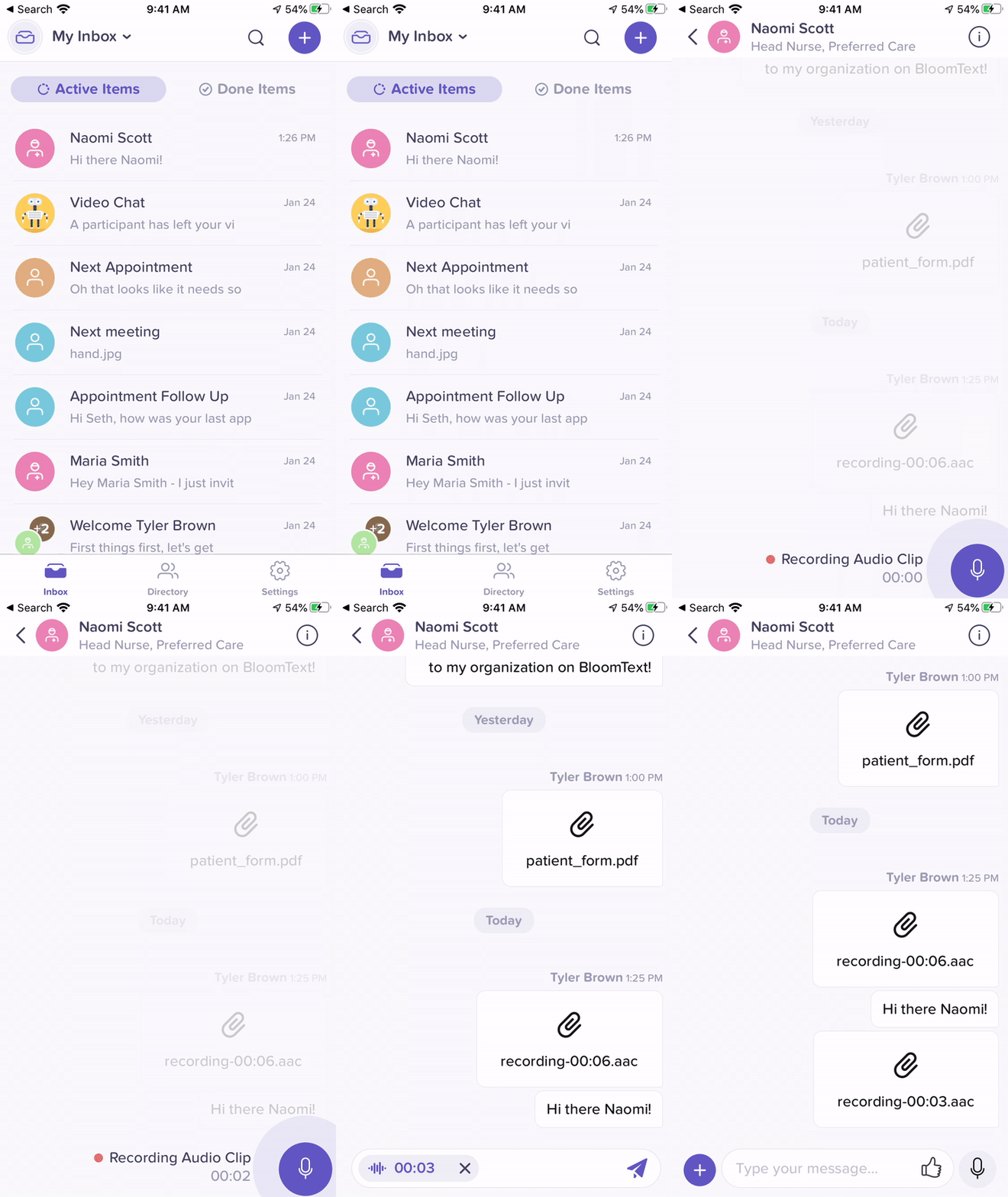
Hold the record button to the right of the message box. Release to send.
7. Configure notifications
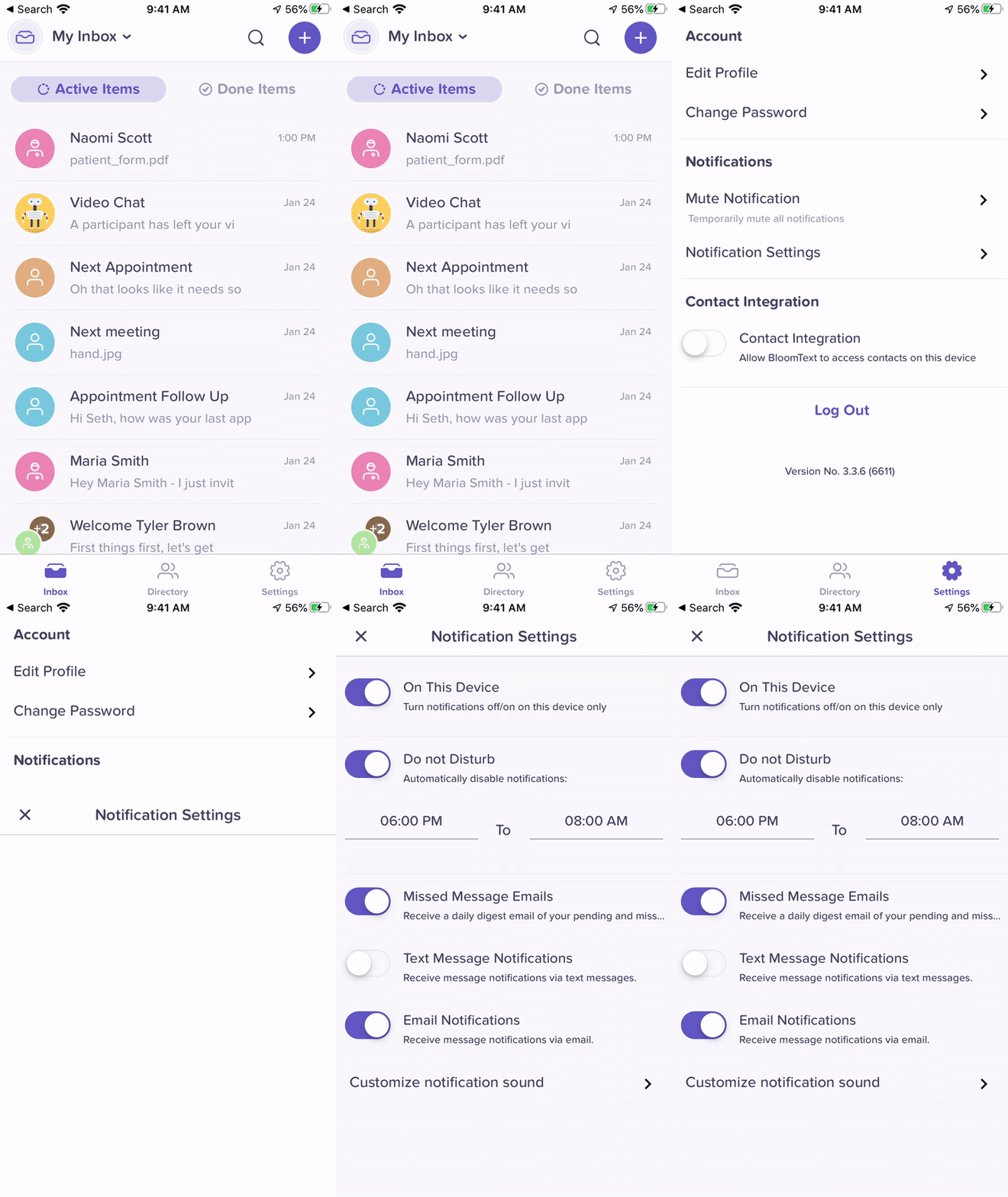
Tap the Settings gear in the bottom-left corner. Open the notifications section. Turn push on or off, schedule Do Not Disturb, or adjust per-conversation preferences.
Edge cases / gotchas
- Some things are desktop-only. Admin actions (adding/removing members, policy changes, plan management) are only available on the web or desktop apps. If you're an admin, keep the desktop app installed.
- Quick-login PIN is desktop-only. Mobile uses your full password or your device's biometric unlock.
- Push notifications need permission. On iOS, the first time you open the app it asks for notification permission. If you tap "Don't Allow", go to Settings → BloomText → Notifications on your phone to re-enable.
- Voice messages are audio files. They count as file attachments in BloomText. Same PHI rules apply — don't record PHI in a message to an external (non-org) user unless the conversation is secure.
Common questions
Where do I download the BloomText mobile app?
Download BloomText from the iOS App Store or Google Play, then sign in with the same account you use on web or desktop.
Can I invite coworkers from the mobile app?
Yes. You can invite coworkers from mobile, but some invitations may need administrator approval before the coworker gets access.
Can I manage admin settings on mobile?
No. Admin tasks such as member management, policies, and plan changes are available on web or desktop.
Can I send photos and voice messages from mobile?
Yes. Mobile supports sending photos and voice messages from conversations. Treat those attachments as PHI when they contain patient information.
How do I turn BloomText mobile notifications back on?
Turn notifications on in the BloomText app settings and in your phone system settings if you previously denied notification permission.
Related flows
Referenced by
Group conversations with multiple participants
Add several patients, family members, caregivers, and staff to one secure conversation. Everyone messages in the same thread, each reply is labeled by sender, and the history stays on your organization account.
Video calls and telehealth
Start HIPAA-compliant video calls with patients from BloomText. Initiate a call, send an invitation via SMS or email, export call details, and follow best practices for telehealth.